Autodesk Fusion add-in · Windows and macOS · Free
Caliper – Measure and ReportFree Measure Tool Add-in for Autodesk Fusion (Fusion 360)
Measure once, read it clearly,
keep every value.
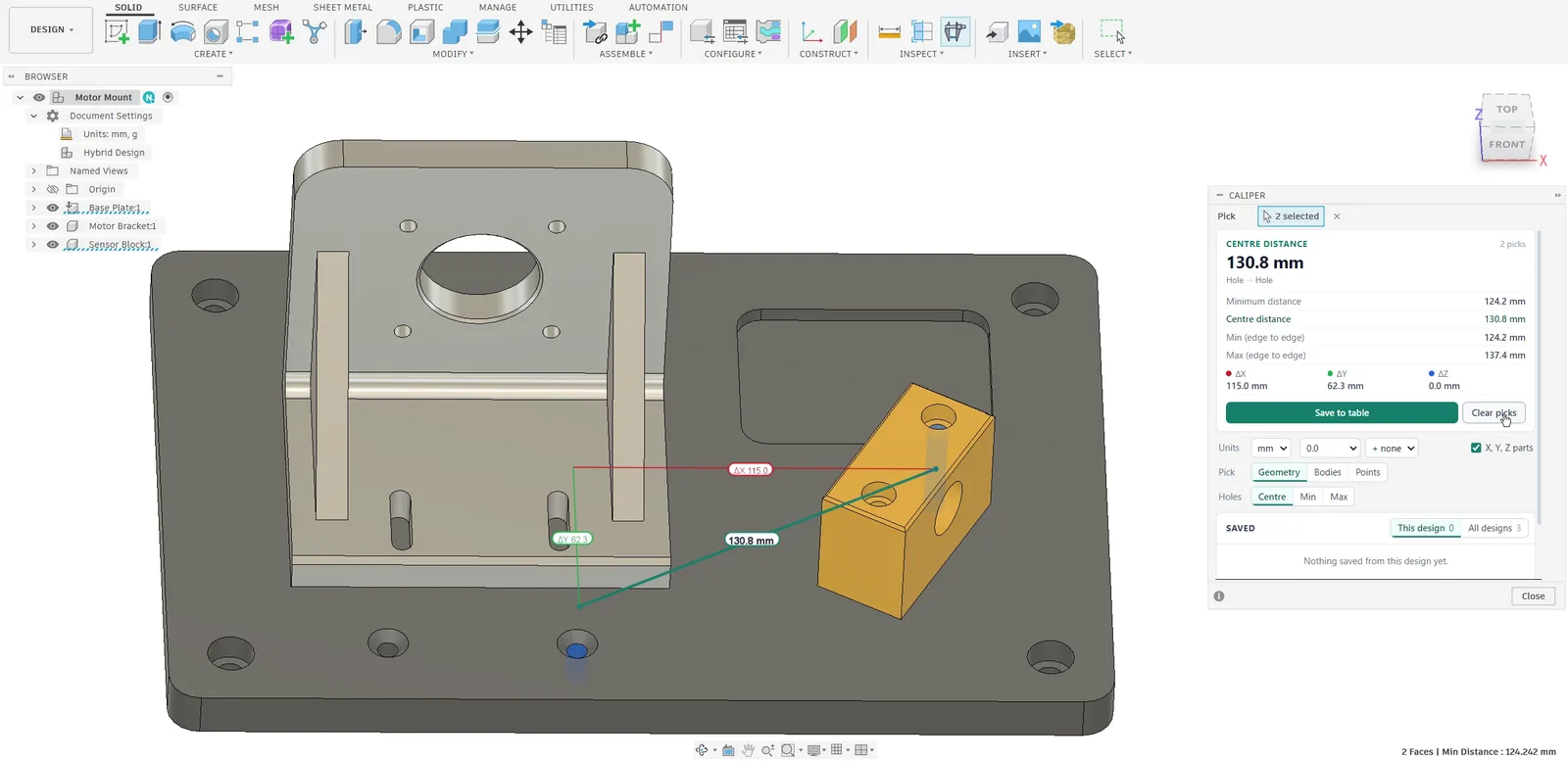
Fusion's Measure shows one value at a time, its numbers crowd each other on a busy model, and it forgets them when you pick again, so values end up on paper or in screenshots. Caliper writes each measurement on the model in labels you can read, keeps every value you save in one table across designs and restarts, and turns the table into a CSV file or a PDF report.
What it does
Measuring that reads like a drawing
Dimensions you can read
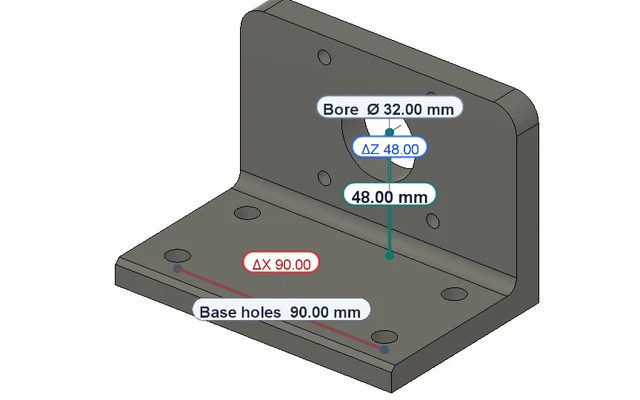
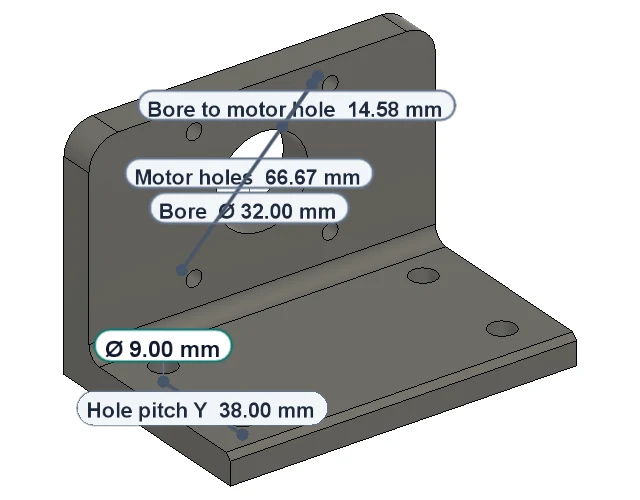
Labels face you, keep their size, stay in front of the part and move aside with a leader instead of covering each other.
More →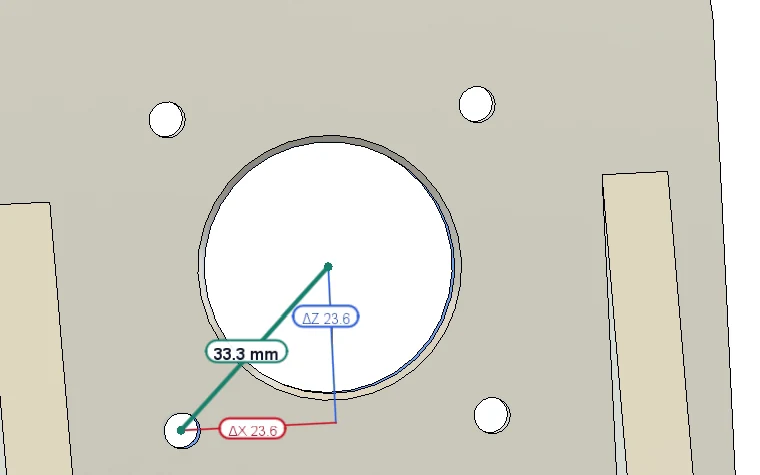
Holes: centre or edge
Between holes, arcs and circles: the centre distance and the nearest and farthest edge distances, as in SOLIDWORKS.
More →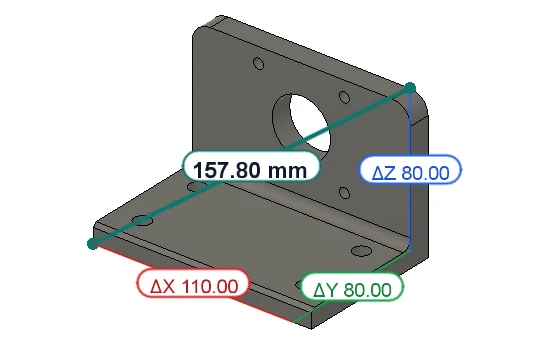
X, Y and Z parts
Every distance comes with its X, Y and Z parts, drawn in red, green and blue like Fusion’s own axes.
More →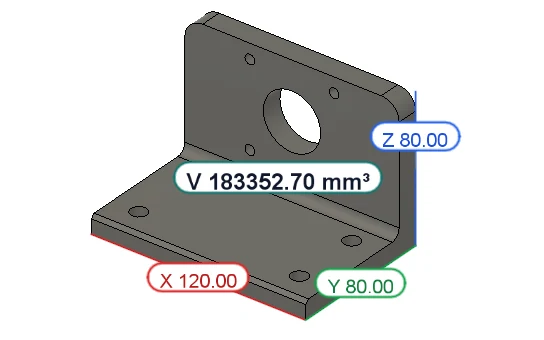
Bodies: volume, mass, size
Pick a body for its volume, mass, size along X, Y and Z and its stock size, even when it sits at an angle; pick several and they add up.
More →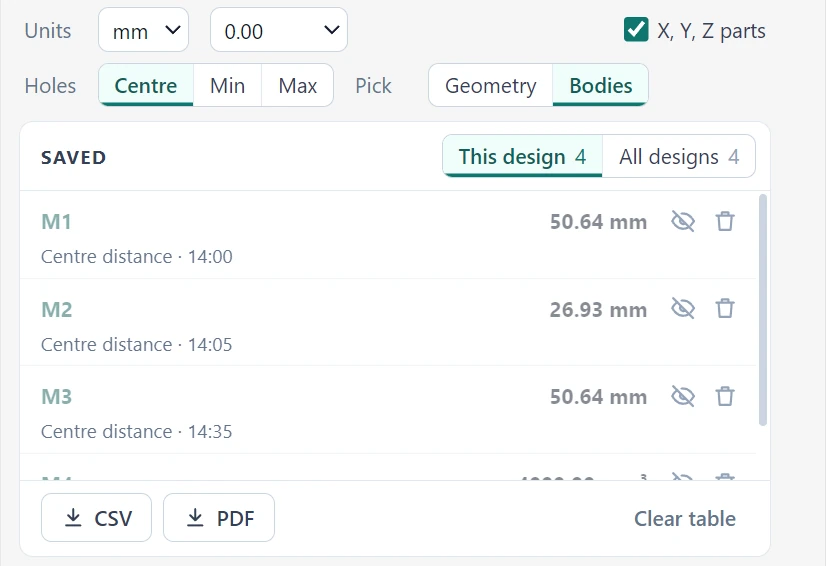
A table that stays
Save a value with one click and name it. The table is there in every design and after Fusion restarts.
More →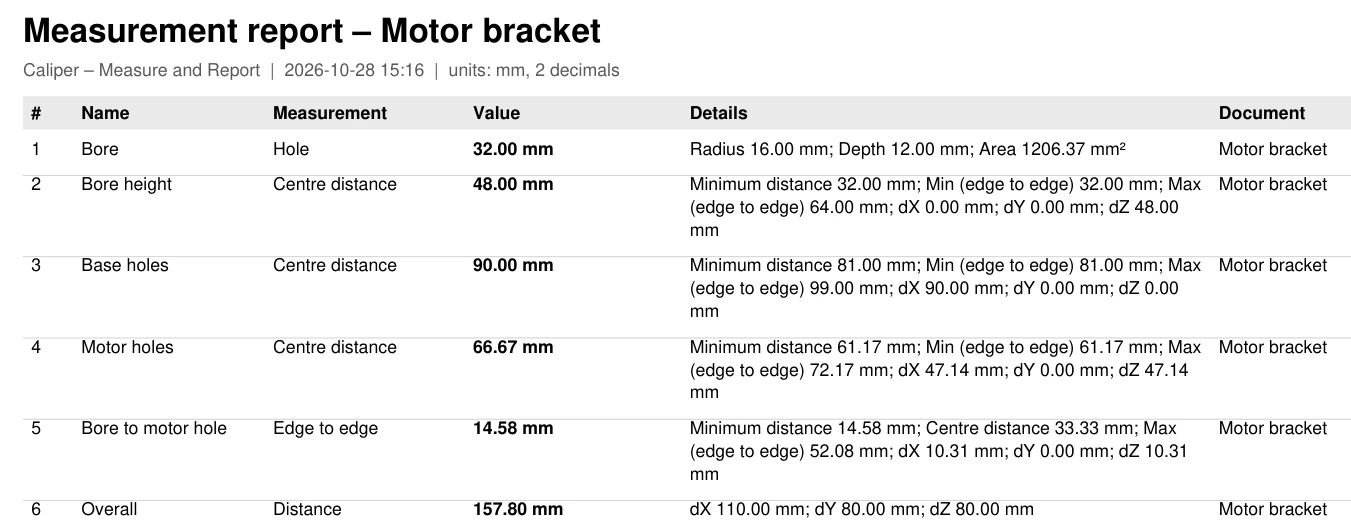
CSV and PDF report
Export the table to Excel or an A4 PDF report, in the unit and decimals you choose.
More →By hand or with Caliper
The checks you repeat, without the notes and screenshots
| Task | With Fusion's Measure | With Caliper |
|---|---|---|
| Distance between two holes | Pick the two cylinders, read the minimum, work out the centre distance | Centre, nearest and farthest edge at once; choose which one is the main value |
| Offsets along X, Y and Z | Read the numbers in the dialog | Drawn on the model in red, green and blue, with their values |
| Several values on one view | One result at a time | Saved values shown on the model by name, next to the one you measure now |
| Keep the values | Write them down or take screenshots; gone when you pick again | One click: a named row in a table that stays in every design and after a restart |
| Hand the values to someone | Type a table by hand | Export CSV for Excel or an A4 PDF report |
What it measures
Pick one, two or more
Click what you want to measure; the result appears at once. One pick gives its size, two picks the distance and angle between them, more picks add up.
For holes, arcs and circles, Holes picks the main value: centre to centre, or the nearest or farthest edges. The other two stay listed in the dialog.
| You pick | Caliper shows |
|---|---|
| A vertex, sketch point or construction point | X, Y and Z |
| A straight edge or sketch line | Length, with its X, Y and Z parts |
| A circle or an arc | Diameter, radius, circumference or arc length, angle and the centre |
| A flat face | Area and perimeter |
| A hole, a shaft or a fillet | Diameter, radius, depth or length, and area |
| A cone, sphere or torus | Its angle or radii, and the area |
| A body | Volume, area, mass (from its material), size along X, Y and Z, and its stock size: the smallest box it fits in, even when it sits at an angle |
| A spot on a face or an edge (Points) | X, Y and Z of the exact spot you click; a second spot, even on the same face, gives the distance between them |
| Two items | Minimum distance, angle, X/Y/Z parts; for holes, arcs and circles the centre distance and the nearest and farthest edges; for parallel faces the distance between them |
| Three or more | Total length of edges, total area of faces, or total volume and mass of bodies with the overall size they take up |
On the model
Dimensions that stay readable
- ✓The value you measure now in teal and bold; its X, Y and Z parts in red, green and blue.
- ✓Labels face you and keep their size while you orbit and zoom, and the part never hides them.
- ✓A label that would cover another one or a measured point moves aside, with a thin leader back to its place.
- ✓Saved values stay off the model until you click their eye; then they show in grey with their name.
- ✓Nothing is added to the design or its timeline.
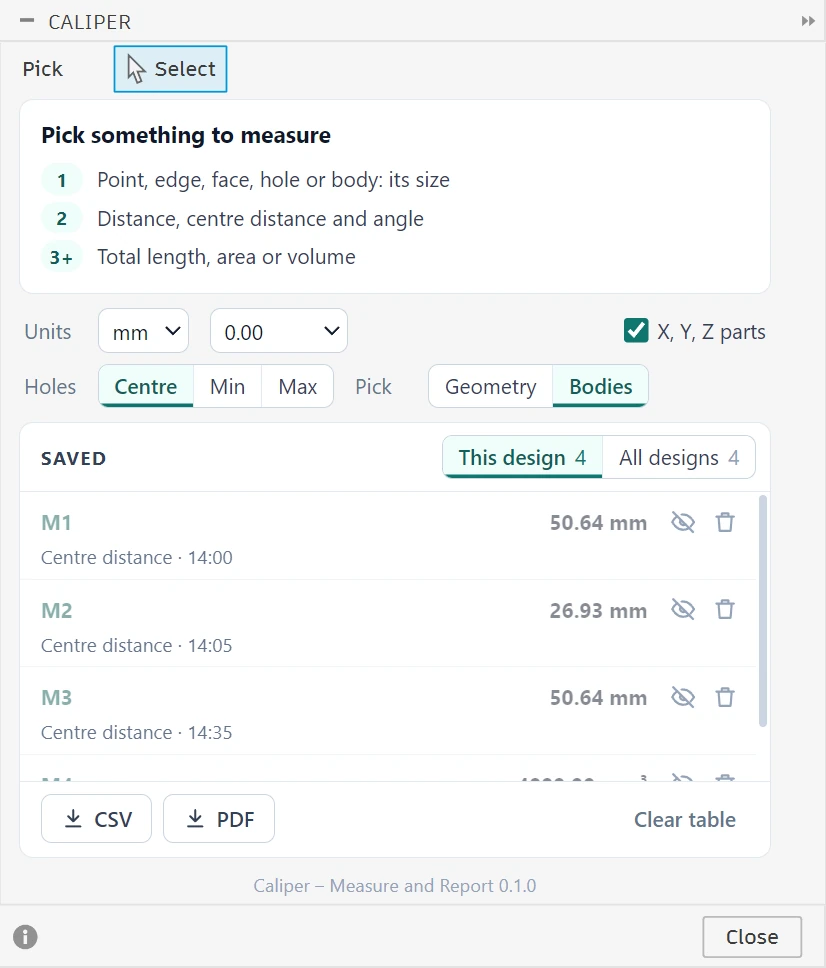
One window
Measure, save and export in the same dialog
Open Inspect › Caliper, next to Fusion's Measure. The dialog shows the result, the options and your saved values.
- ✓Save to table adds the value as M1, M2… and keeps your picks; click a name to rename it.
- ✓One table for every design, kept when you switch documents and when Fusion restarts; it opens on This design, and All designs shows the rest.
- ✓Units mm, cm, m, in or ft with 0 to 6 decimals; the table follows when you change them.
- ✓Holes: Centre, Min or Max as the main value. Pick: geometry or whole bodies.
Saved values are a record of the model when you saved them; they do not follow later changes.
Report
A report in one click
Both formats export the rows the table shows, This design or All designs, in the unit and decimals you chose. The sample is the motor bracket on this page, measured and saved with Caliper.
A4 landscape, ready to print or send: the name, measurement, value, the other values, the design and the time of each row, with the units and the date on every page.
CSV
Opens in Excel with the value and its unit in separate columns, so you can sort, compare and chart; the ², ³ and ° signs come through intact.
Video
Caliper in four minutes
A motor bracket, a base plate and a sensor block, measured first with Fusion's own Measure, then with Caliper: the same holes with their X, Y and Z parts, Save to table, Bodies and Points, a second design saving into the same table, units, and the PDF report. No sound; a caption names each step.
Download
Free, for Windows and macOS
- 1
Unzip it to a folder you keep
for example Documents\Fusion add-ins. You get a folder named CaliperMeasureAndReport.
- 2
Add it to Fusion
Utilities › Add-Ins › Scripts and Add-Ins, then the + button, and pick the CaliperMeasureAndReport folder.
- 3
Run it
Select Caliper in the list, tick Run on Startup and click Run. The Caliper button appears in Inspect, next to Measure.
Updating later: stop the old version, replace the folder and restart Fusion, as the installation guide explains. User guide · Version history
Questions
Caliper FAQ
Is Caliper really free?
Yes. There is no license, no trial and no time limit, and every feature is included.
Why do you ask for my email?
To know who uses Caliper and to tell you when a new version is out. We keep the email, the version and the time of the download; it is never shared or sold, and you can ask us to delete it.
What does Caliper send?
Only what our paid add-ins send: your Autodesk user ID and account email, when you open it, at most once a day, so we know who uses it. The answer tells Caliper about a newer version. Your designs, picks and measurements are never sent.
Does it run on macOS?
Yes. The same ZIP installs on Windows and on macOS.
Can I copy a value, or see it in inches too?
Yes. Click any number in the Caliper dialog to copy it, ready to paste into a spreadsheet or a Fusion dimension. Pick a second unit and every value shows in both, for example millimetres and inches.
Does Caliper change my design?
No. It adds nothing to the timeline; the dimensions are drawn over the model while the Caliper dialog is open and disappear when you close it.
How is it different from Fusion’s own Measure?
Fusion’s Measure shows one result at a time and forgets it when you pick again. Caliper adds the hole centre and edge distances, the X/Y/Z parts on the model, labels that do not overlap, a table that keeps your values, and CSV and PDF reports.
Where are my saved values kept?
In one file in your user folder, the same for every design: %APPDATA%\VanThanBK\CaliperMeasureAndReport\measurements.json on Windows, ~/Library/Application Support/VanThanBK/CaliperMeasureAndReport/ on macOS.
Do saved values follow later changes to the model?
No. A saved value is a record of the model when you saved it. Measure again after a change.
Does it work in assemblies?
Yes. Picks in components and inside an activated component are measured where they sit in the assembly.
Where do I report a bug or ask for a feature?
Email support@vanthanbk.com, ideally with a screenshot of the Caliper dialog.
Something else? Email support@vanthanbk.com.
More for Autodesk Fusion (Fusion 360)
Combine with other VanThanBK fabrication & assembly add-ins
Frames, joints and cut lists
 Steel Frame & Weldments Pro
Tube folding, welds and frame analysis in Fusion
From tube routes to fabrication packages
 Sheet Metal & Press Brake
Bend sheets for the press brake, from the Fusion flat
 Assembly Hole Series
Bolted-joint holes through every part, linked files too
 Auto Backup & Export
Local backups of your Fusion cloud designs