01
Each save
The default. Each design you save is exported once Fusion has finished uploading it, which keeps Fusion busy for a few seconds. A design with new unsaved changes waits, and an open assembly with linked parts waits until you close it.
Autodesk Fusion add-in · v1.0.0 · Windows and macOS
Back up every Fusion design
without exporting them one by one.
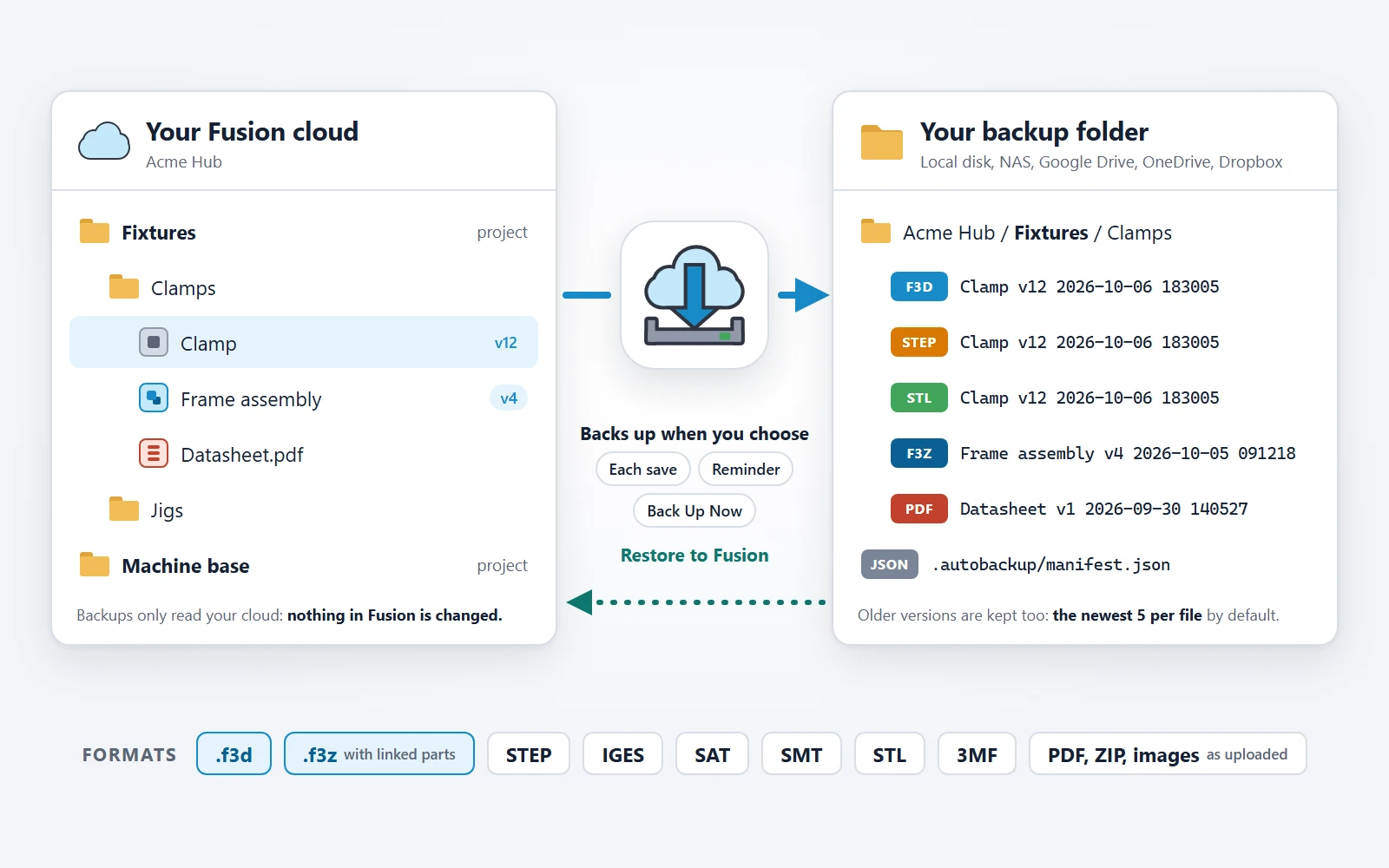
The add-in opens, exports, downloads and files your cloud designs for you: after each save, when you answer a daily or weekly reminder, or when you click Back Up Now. They go to a local disk, a NAS or a Google Drive, OneDrive or Dropbox folder, assemblies with their linked parts, every version named and in order, and Restore to Fusion brings them back. With many designs, that saves hours of manual work.
Works inside Fusion. It is an add-in, not a background sync like Google Drive: Fusion needs to be open, and it is busy while a backup or a restore runs, a few seconds per design, longer for large projects.
Video
How it works
Backing up Fusion designs by hand means opening each one, exporting it, downloading the file, naming it, putting it in the right folder and keeping track of its versions, again after every change. For 200 designs with a STEP file each, that is 400 files to export, name and file, every time. The add-in does all of it for you and keeps the versions in order, using Fusion to do the work.
Start Back Up Now or a restore when you can leave Fusion for a while, for example at a break or the end of the day, or tick a few projects first and add the rest later. After the first backup only changes are copied.
Manual export vs. Auto Backup & Export
| Backup / Export Task | Manual Export | Auto Backup & Export Add-in |
|---|---|---|
| Back up all projects or selected folders locally | Open and export each design one by one, recreating folders by hand | Mirrors hub, project and folder hierarchy automatically; subsequent runs export only changed versions |
| Assemblies with external linked components | Requires cloud-exporting an .f3z archive per assembly and waiting for each download | Automatically exports .f3z for assemblies with linked parts and .f3d for single-file designs |
| Keep neutral CAD & 3D-print files up to date | Export STEP, IGES, SAT, SMT, STL or 3MF separately after every design change | Saves optional STEP, IGES, SAT, SMT, STL and 3MF alongside each .f3d / .f3z version |
| Restore a project or move to another Autodesk account | Re-upload files one by one and rebuild folder trees manually | Restore to Fusion recreates folders, uploads parts and assemblies, or restores a single historical version |
What gets backed up
Your designs live in Autodesk's cloud. A copy on storage you control covers an accidental delete, a project you lose access to or a move to another account, and gives other CAD systems and your 3D printer the files they need without exporting each design yourself.
The complete Fusion design with its timeline, including the components that live inside it.
A design with linked components becomes a Fusion archive that holds every linked design, so it restores on its own.
Optional neutral files of the whole design for other CAD systems, saved next to its Fusion file.
Optional meshes of the whole design for 3D printing. A design without bodies gets none.
PDF, ZIP, images and other non-Fusion files in your projects are copied exactly as you uploaded them.
Each backup is one version. The newest five of each file are kept by default, or as many as you choose; 0 keeps all.
Drawings (.f2d), Electronics files and configured designs are not backed up in this version. The extra files contain the visible bodies, like Fusion's own exports; the .f3d and .f3z keep everything.
When backups run
Backups are incremental: a file whose cloud version has not changed is not copied again. One design is handled at a time, and a backup never starts in the middle of a command you are using.
The default. Each design you save is exported once Fusion has finished uploading it, which keeps Fusion busy for a few seconds. A design with new unsaved changes waits, and an open assembly with linked parts waits until you close it.
Every day or every week the add-in asks whether to back up now. Yes runs Back Up Now; No asks again two hours later. It asks only when Fusion is idle.
Nothing runs by itself; backups happen only when you click Back Up Now. Also the way to pause backups for a while.
Checks every selected project and backs up whatever changed, including colleagues' saves. Fusion is busy until it finishes; Cancel stops after the current design.
Where files go
Any folder you can write to: a local disk, an external drive, a NAS or a sync folder. Choose a detected Google Drive, OneDrive or Dropbox folder and your own sync app keeps an off-site copy as well.
<backup folder>/
  Acme Hub/
    Fixtures/
      Clamps/
        Clamp v12 2026-10-06 183005.f3d
        Clamp v12 2026-10-06 183005.step
        Clamp v11 2026-10-02 091542.f3d
        Frame assembly v4 2026-10-05 091218.f3z
        Datasheet v1 2026-09-30 140527.pdf
  .autobackup/
    manifest.json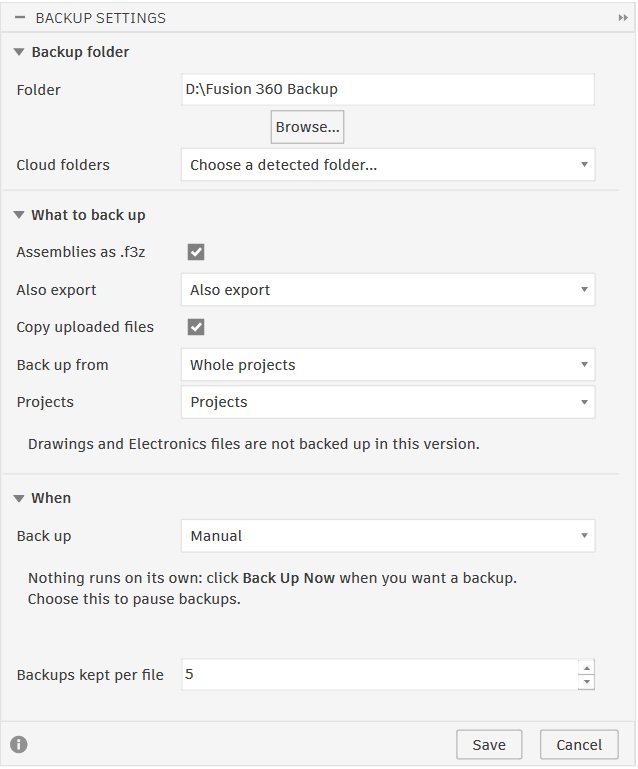
The manifest records every backup and travels with the folder: keep it with the backups. It is how the add-in knows what is already backed up, and where Restore to Fusion finds the original folder and file names.
Commands
Open Design → Utilities → Auto Backup. Choose the backup folder once in Backup Settings and the rest runs by the mode you picked.
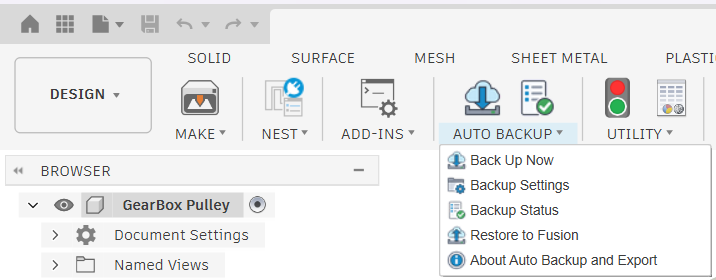
Start a backup of the selected projects now, with a progress window and Cancel.
Backup folder, projects or chosen folders, extra formats, when backups run and how many versions to keep.
What the add-in is doing, problems and waiting designs with their reasons, recent backups, the log and the backup history.

Upload a whole project or one folder from a backup into Fusion, with its original folders and names.

Version, license status, update download, this product page, the user guide and the privacy policy.
Restore to Fusion and backup history
A backup is only useful when it comes back. Restore to Fusion uploads the newest backup of each file and recreates the original folders and names; the backup history in Backup Status brings back any older version that is kept.
A whole project goes into a new project by default; one folder goes back where it was when its project is in this account (a deleted folder is made again in the same place). Sign in with another Autodesk account to move your designs there.
An .f3z comes back with its linked parts. Each part is then put in its own folder, as in the backup, and the restored assembly uses the newest backup of each part, so newer work on a part is never left behind.
Pick a design and one of its kept versions; Restore version uploads it as a new design, for example Bracket (v12). Works with a backup folder copied from another computer.
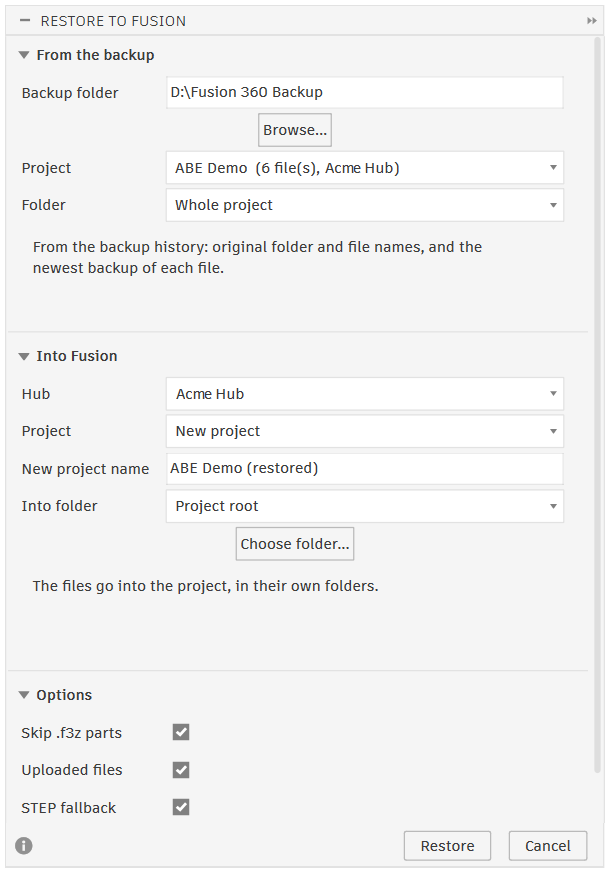
Each file arrives as a new design at version 1: the cloud version history, comments and share links are not part of a backup. Read how a restore works.
Auto Backup & Export v1.0.0 · Windows and macOS
US$39/year or US$7/month per user, with a free 3-day trial. Pay by card through Lemon Squeezy with the email of your Autodesk account. The license is issued to that account and unlocks the Windows and the macOS build.
Contact supportThe user guide covers every setting, the backup modes, where files go, restoring and the current limits. It is the same Help that ships inside the add-in.
Download
With a license (a purchase or a license from us), download the newest Windows or macOS build here with the email of your Autodesk account, or from inside the add-in (About › Download latest version). The add-in checks your license when it starts, so the file is only useful with a license.
No license yet? Ask for early access. Then install it with the installation guide.
The same add-in runs on Windows and macOS. Pick the machine you will install on.
Checking…
Adding the ZIP by hand? In Scripts and Add-Ins › +, select the folder that contains the .manifest file, not the file: on Windows, the Contents folder inside the .bundle.
Updating or switching versions? Clear Run on Startup for the old add-in, Stop it and close Fusion before replacing files. Restart Fusion before you Run the new version.
Before you start
No. It is a Fusion add-in, so it works only while Fusion is open, signed in and online; what it saves you is opening, exporting, downloading, naming and filing every design and version yourself.
Fusion’s local cache (W.login\F) only stores temporary cached copies of recently opened files, not every design in your cloud projects, and it does not package assemblies with external linked components into portable .f3z archives. Many older GitHub bulk-export scripts also break on current Fusion updates, skip linked assemblies or offer no way to restore a folder tree. Auto Backup & Export systematically opens and exports real .f3d and .f3z archives (plus optional STEP, IGES, SAT, SMT, STL and 3MF), skips unchanged versions on later runs, and includes Restore to Fusion.
No. Backups only read your cloud data. Designs you have open are exported in place and never closed or modified; designs the add-in opens itself are opened hidden, exported and closed without saving. Only Restore to Fusion and Restore version add files, when you run them; they never change or delete the files that were already there.
Not while it exports: with Each save that is a few seconds after each save, and Back Up Now or a restore keeps Fusion busy until it finishes. A backup never starts in the middle of a command you are using.
A few seconds per design, longer for large designs, assemblies and each extra format, so a few hundred designs can take an hour or more. You can cancel and continue later; after the first backup only changes are copied.
Yes. Choose a folder that their desktop app syncs; detected Google Drive, OneDrive and Dropbox folders are offered in Backup Settings. The add-in never signs in to these services.
The projects you tick, from all your hubs, or only the folders you choose. With Each save, your own saves are backed up. Back Up Now and the reminder check every selected project, so changes saved by colleagues or on another computer are copied as well.
Yes. Sign in to Fusion with that account and run Restore to Fusion.
Open Backup Status, pick the design and version under History, and Restore version uploads it as a new design.
The .f3d backups and the STEP, SMT, STL and 3MF files work. Fusion does not allow IGES and SAT export with that license, and Backup Status says so.
Yes. Every version is published as a Windows build and a macOS build with the same commands. One subscription unlocks both.
No. Backups go only to the folder you choose. License checks send your Autodesk user ID, email and the App ID; designs, file names and paths are never sent to VanThanBK.
Yes, 3 days. It starts the first time you click Back Up Now or open Backup Settings or Restore to Fusion while signed in and online. Backup Status and About work without a license, so you can always reach your backups.
US$39/year or US$7/month per user, by card on this page (the Autodesk App Store listing is coming). Questions: support@vanthanbk.com.
Supported scope
Nothing is backed up while Fusion is closed or offline. A design that was being backed up when Fusion closed is tried again later, and a reminder missed meanwhile comes once when Fusion is next open.
They take about 20–40 seconds per assembly, longer for large ones. An assembly that is open in Fusion is backed up as .f3z once you close it.
Drawings, Electronics files and configured designs are not backed up, as noted under What gets backed up. Each backup holds one version, without the cloud version history, comments or share links.
Planned improvements
These items are planned. They are not yet included, and release dates are not set.
Back up Fusion drawings as PDF files next to their designs.
Send backups to Google Drive without the Drive for desktop app.
Need another format or destination? Tell us what you back up.
More for Autodesk Fusion (Fusion 360)
Frames, joints and cut lists
 Steel Frame & Weldments Pro
Tube folding, welds and frame analysis in Fusion
From tube routes to fabrication packages
 Sheet Metal & Press Brake
Bend sheets for the press brake, from the Fusion flat
 Hole Series & Fasteners
Matching holes and bolts in every part