Autodesk Fusion add-in · Windows and macOS

Assembly Hole SeriesBolted-Joint Holes Through Several Parts, for Autodesk Fusion (Fusion 360)
Every hole of a bolted joint, in every part, in one command.
Linked part files too, without opening them one by one.
Bolt holes repeat: the same counterbore, clearance hole and thread in part after part, all in line. When the parts are linked Fusion files, each one also has to be opened, sketched and saved. Assembly Hole Series does it from the assembly.
US$49/year or US$8/month per user · Windows and macOS
- Pick the centres and the parts once: every part gets the hole its side needs, sized to ISO and DIN.
- Linked part files are drilled and saved for you, and the assembly is updated.
- Change the size or move a part: Edit Assembly Feature or Update All brings every hole back in line.
Key features
What Assembly Hole Series does
1.Every part of the joint, one command
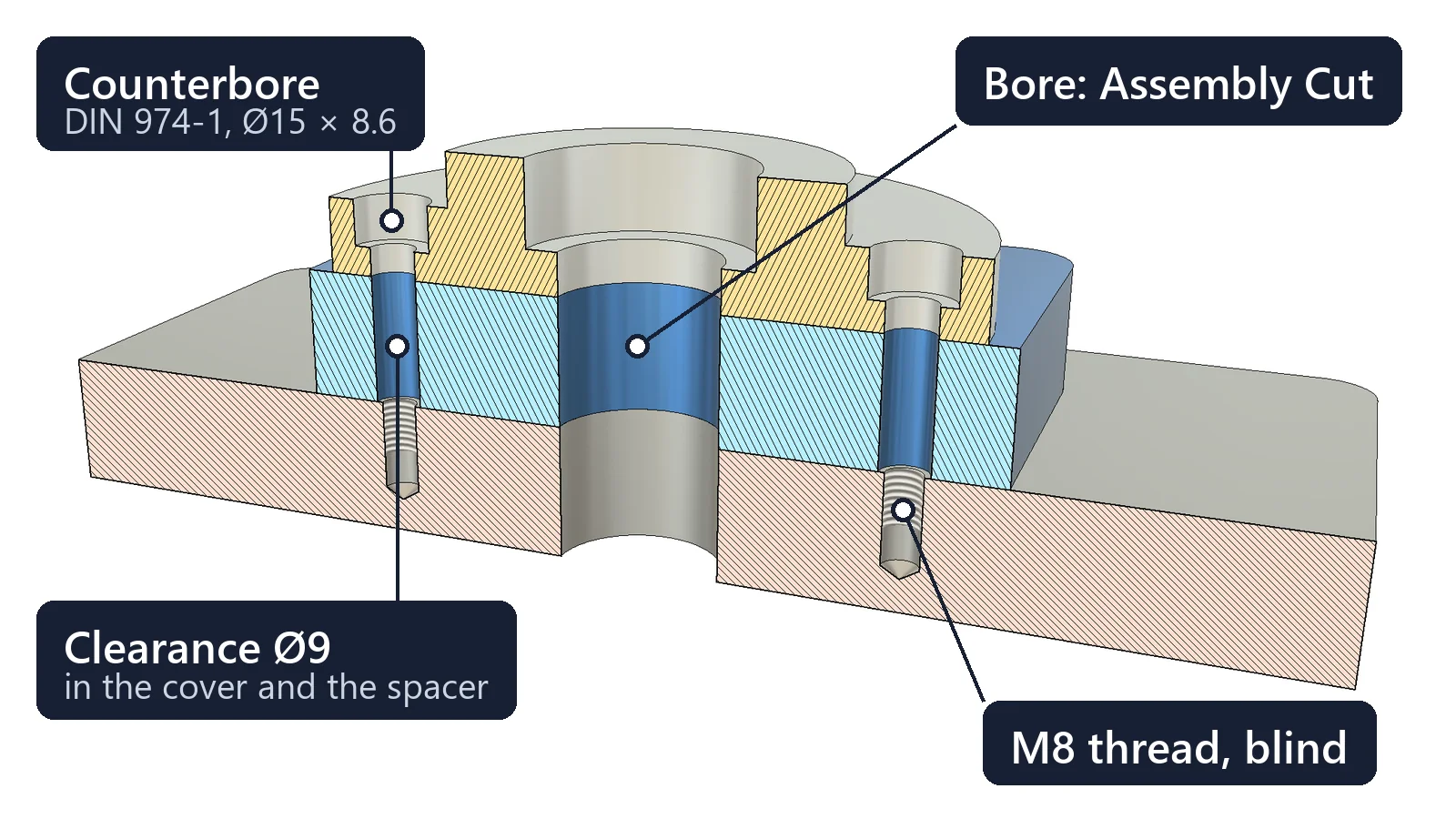
Pick the centres and the parts once. Each part gets the hole its side needs: a counterbore under the head, clearance in between, a thread or a sunk nut at the end.
See how →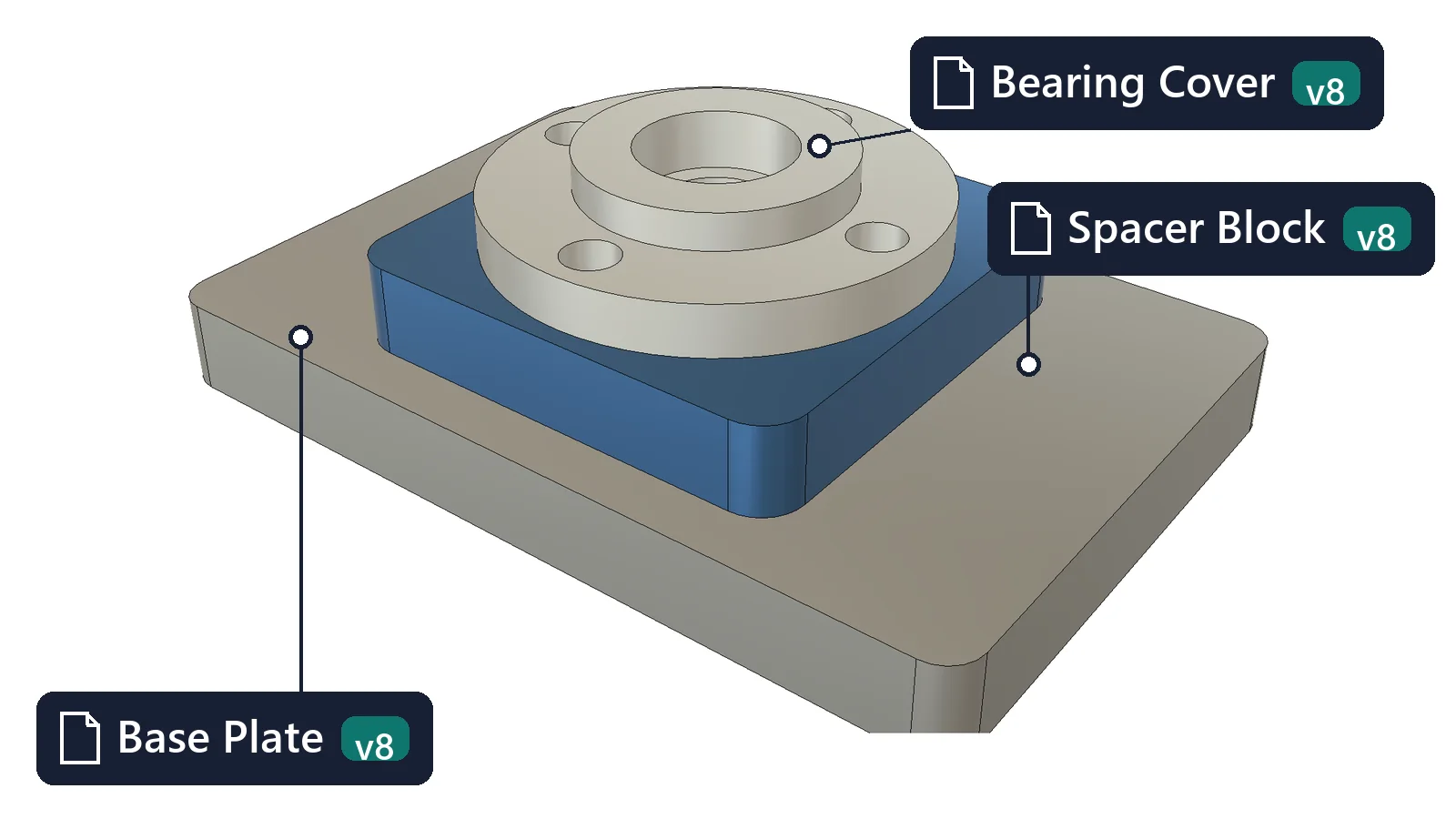
2.Linked part files, none opened by hand
Parts kept in their own Fusion files, also inside linked subassemblies, get their holes from the assembly. Each file is saved as a new version and the assembly is updated.
See how →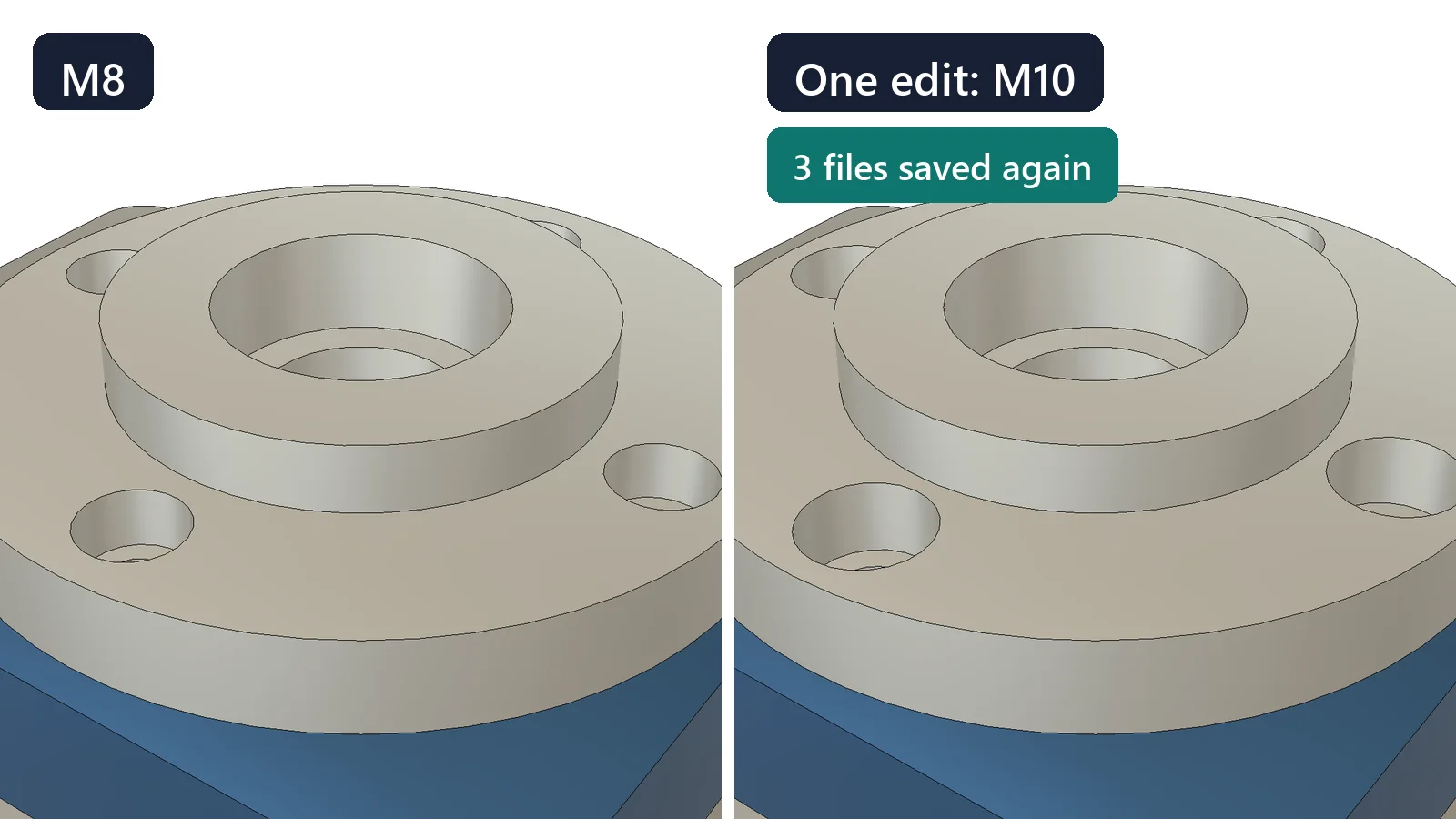
3.Change once, every hole follows
Edit M8 to M10: the holes change in every part file and the Fusion fasteners in them are resized. Moved a part? Update All drills its holes in line again.
See how →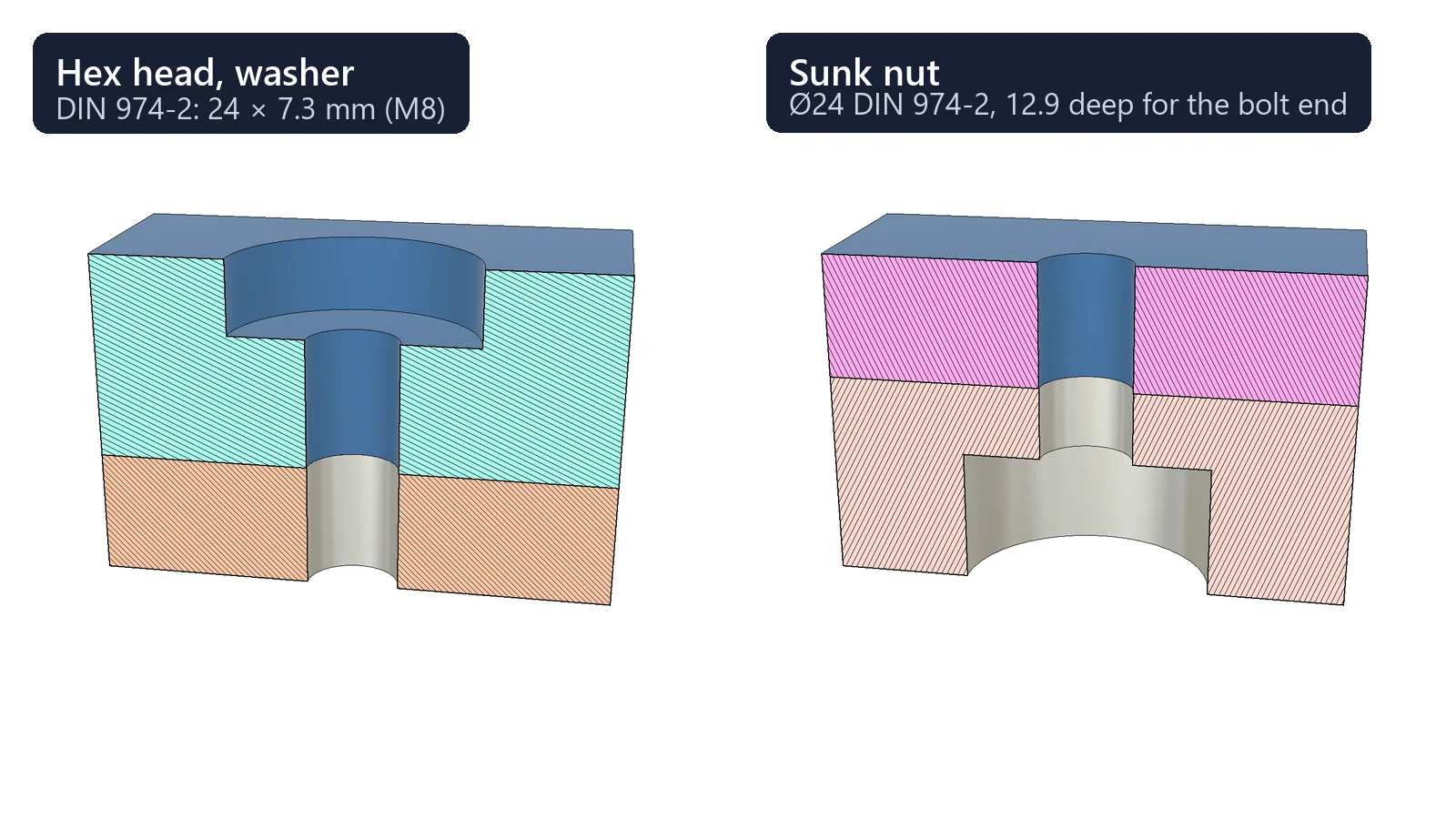
4.Sizes from the standards
Choose the screw, the head and how the joint ends: clearance to ISO 273, counterbores to DIN 974, the thread as deep as the material needs (VDI 2230), and a bolt list with the lengths.
See how →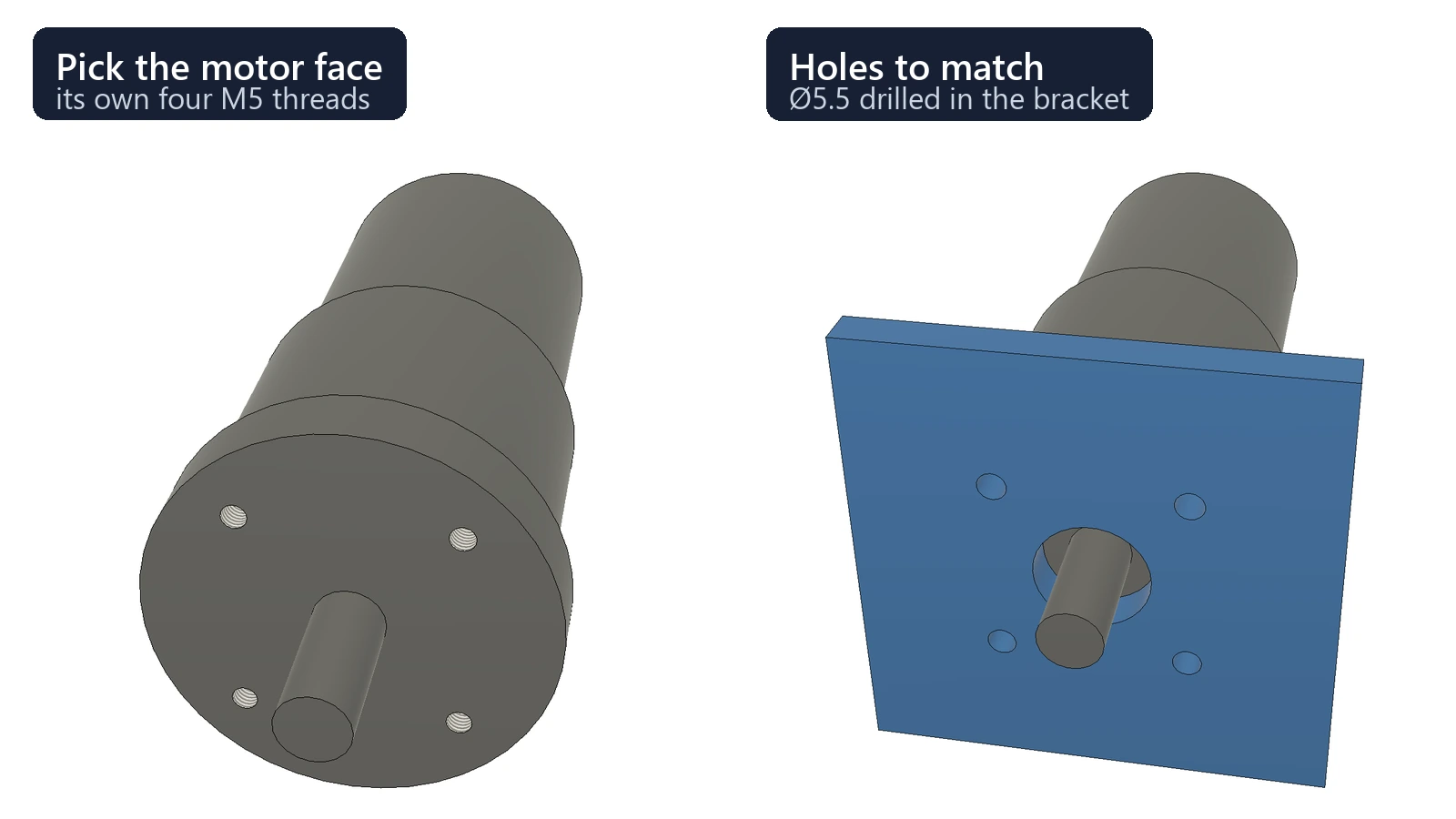
5.Bolt bought parts on their own holes
Pick the face of a motor, rail or bearing block: its holes become the centres and the size is read from them.
See how →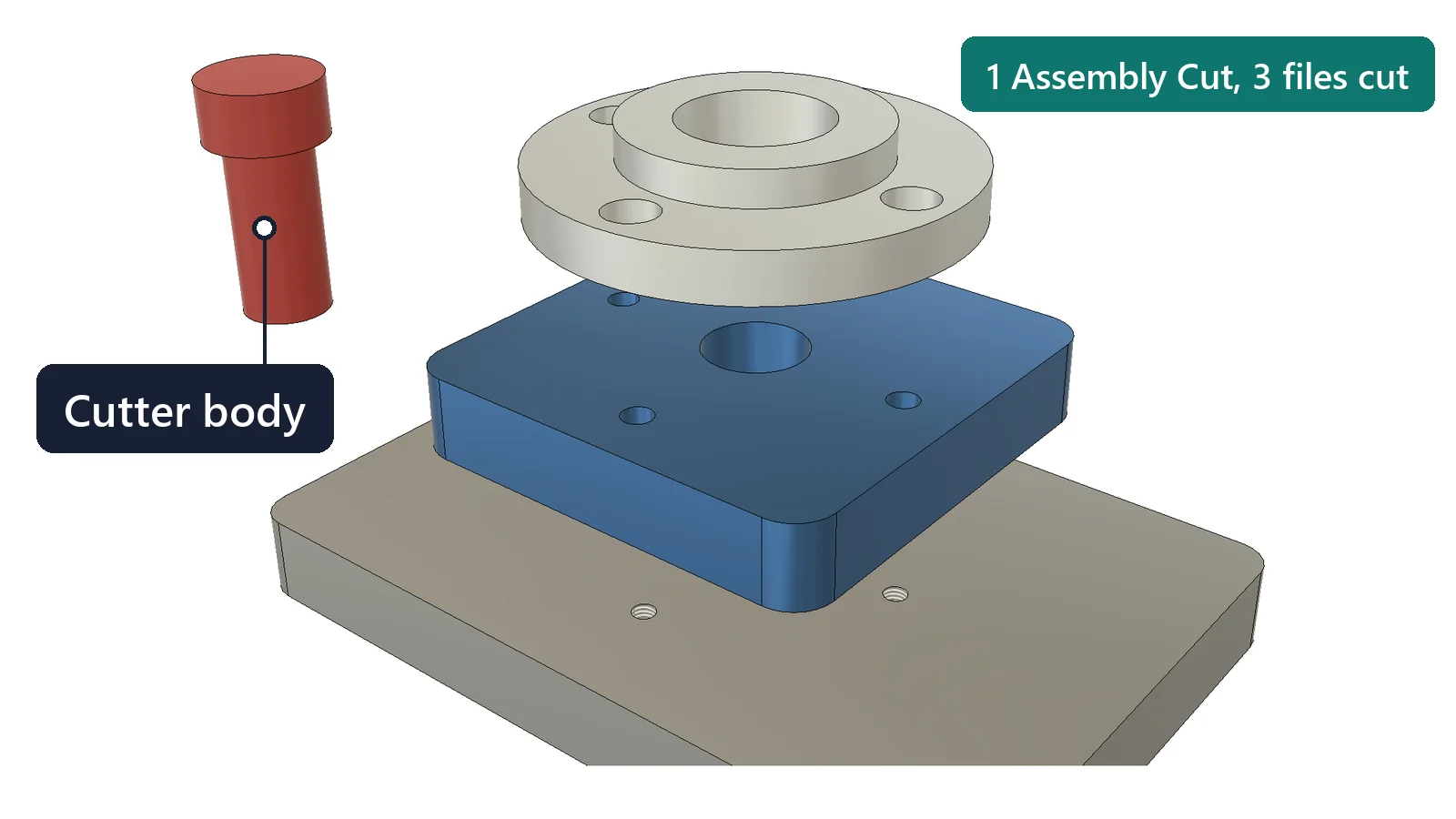
6.One cut through several parts
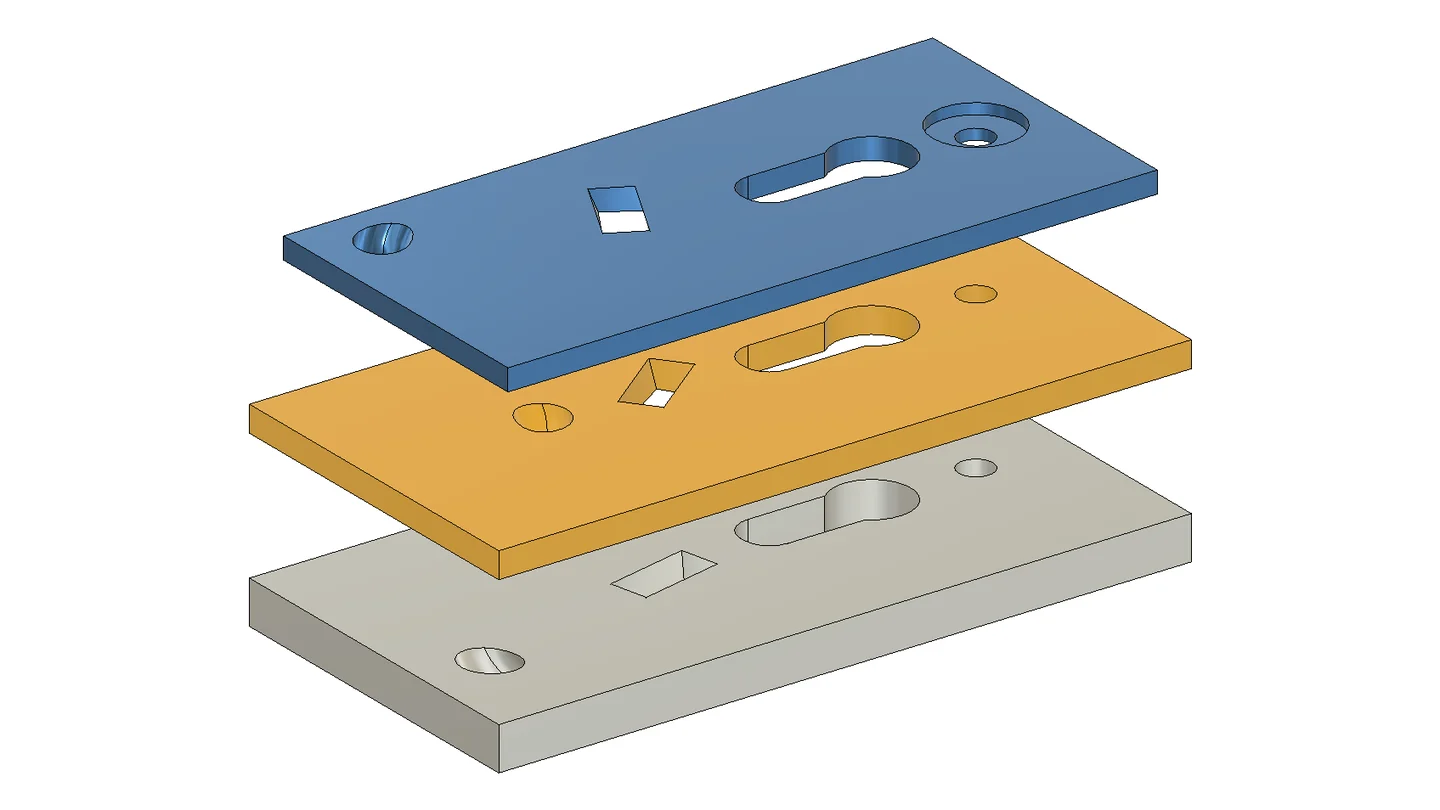
Model a cutter of any shape and pick the parts it passes: Assembly Cut cuts each one where the cutter crosses it, local or linked.
See how →Where the time goes
A bolted joint is quick to draw once. The files are what take the time.
The drive mount in jobs 1 to 3 below has 4 part files and 3 bolted joints: 16 holes in 3 of the files (the bought gear motor keeps its own threads) and 14 pieces of hardware. This is what it takes in Fusion by hand, and with Assembly Hole Series.
By hand
- Open the 4 part files one by one: three to drill, the motor to measure its threads.
- In each, sketch the hole positions, measured from the assembly into that part's own coordinates, and add 16 holes of the right type: clearance or M8 tapped, the bracket's in line with the motor's own threads.
- Save every file, go back to the assembly, get the latest version of each one and check that every hole lines up.
- Insert 14 pieces of hardware (screws, bolts, washers, nuts), work out each length from the plate thicknesses and joint them in place.
- Look up each counterbore and thread depth, and count the hardware for purchasing.
- Change a size or move a part later, and do it all again in every affected file.
With Assembly Hole Series
- Run 3 Hole Series in the assembly, one per joint: pick the centres and the parts, choose the size, the screw and how the joint ends.
- Assembly Hole Series drills the 16 holes in 3 files, sized to the standards, saves them and updates the assembly. The bought motor stays as it is.
- Place the 14 pieces of hardware with Fusion's Insert Fastener; they fit the holes.
- Change a joint later with Edit Assembly Feature: the files follow, and the fasteners in the holes are resized.
- Move a part: Update All measures the joints again, drills the holes in line and saves the files.
- Export the hardware with its lengths with Export Bolt List.
Each joint of the drive mount took about half a minute, most of it Fusion saving the part files to the cloud. You confirm and wait; there is nothing to open, sketch or measure.
Video
The whole workflow in 5 minutes
Every command on one linked assembly, from the first holes to the bolt list, with a caption for each step. The waits are shown 3 times faster.
Linked files and subassemblies
Linked part files, drilled and saved for you
Keep each part in its own Fusion file, linked into the assembly, and select the parts in the assembly as usual. Assembly Hole Series checks every file first, then adds the holes or the cut in each file, in its own coordinates, saves it as a new version and updates the links. A part can be linked straight into your assembly or sit inside a linked subassembly, two link levels down; the dialog lists each subassembly with the files under it, and one message at the end names every file saved.
A part used several times shares one definition, so the holes appear in every copy; Assembly Hole Series only does that when you tick All instances.
Read the linked-file rulesExample: a packaging line with an infeed module linked in
Your assembly is saved last, with every link on the new versions.
Watch it: four joints through three linked files
Three plates, each its own Fusion file, linked into one assembly. The four centres are points in the clamp plate's own sketch. M8, socket heads sunk, nuts sunk at the far face; the tooltips show every choice to scale.
One OK: Assembly Hole Series checks the three files, adds the holes in each one, saves it, then saves the assembly. Opened on its own, the frame plate has the four nut counterbores with flat floors.
One command, every file
What Assembly Hole Series wrote into each part file
Each part of the drive mount in jobs 1 to 3 below is its own Fusion file, linked into the assembly. Opened on their own after its three joints, the files show their new holes: normal Fusion hole features at the right place in each file. The bought gear motor was not drilled: its own threads set where the bracket's holes go.
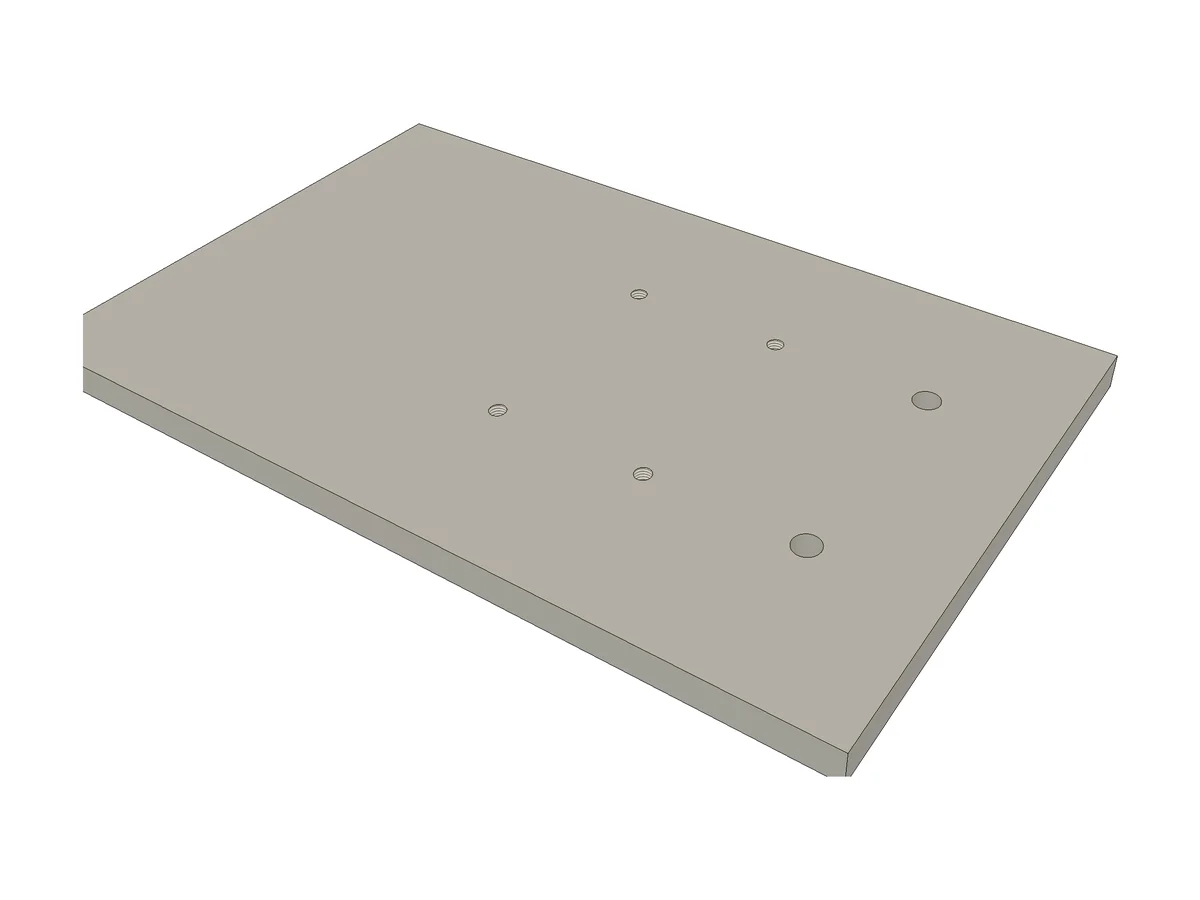
Base Plate v3
4 × M8 tapped holes for the bracket and 2 × Ø11 clearance holes for the bearing block, from two different joints.
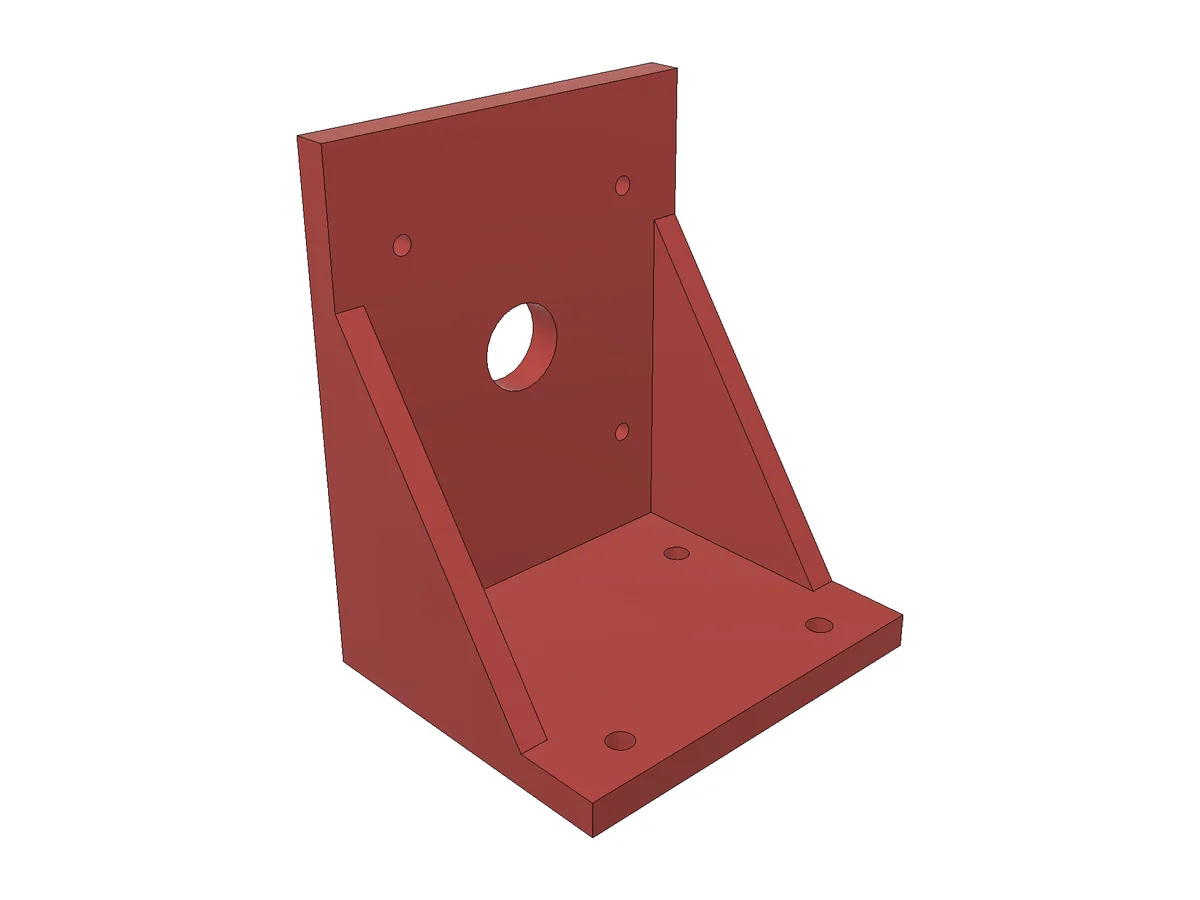
Motor Bracket v3
4 × Ø9 clearance holes in the foot, and 4 × Ø6.6 clearance holes in the upright in line with the four M6 threads of the motor.
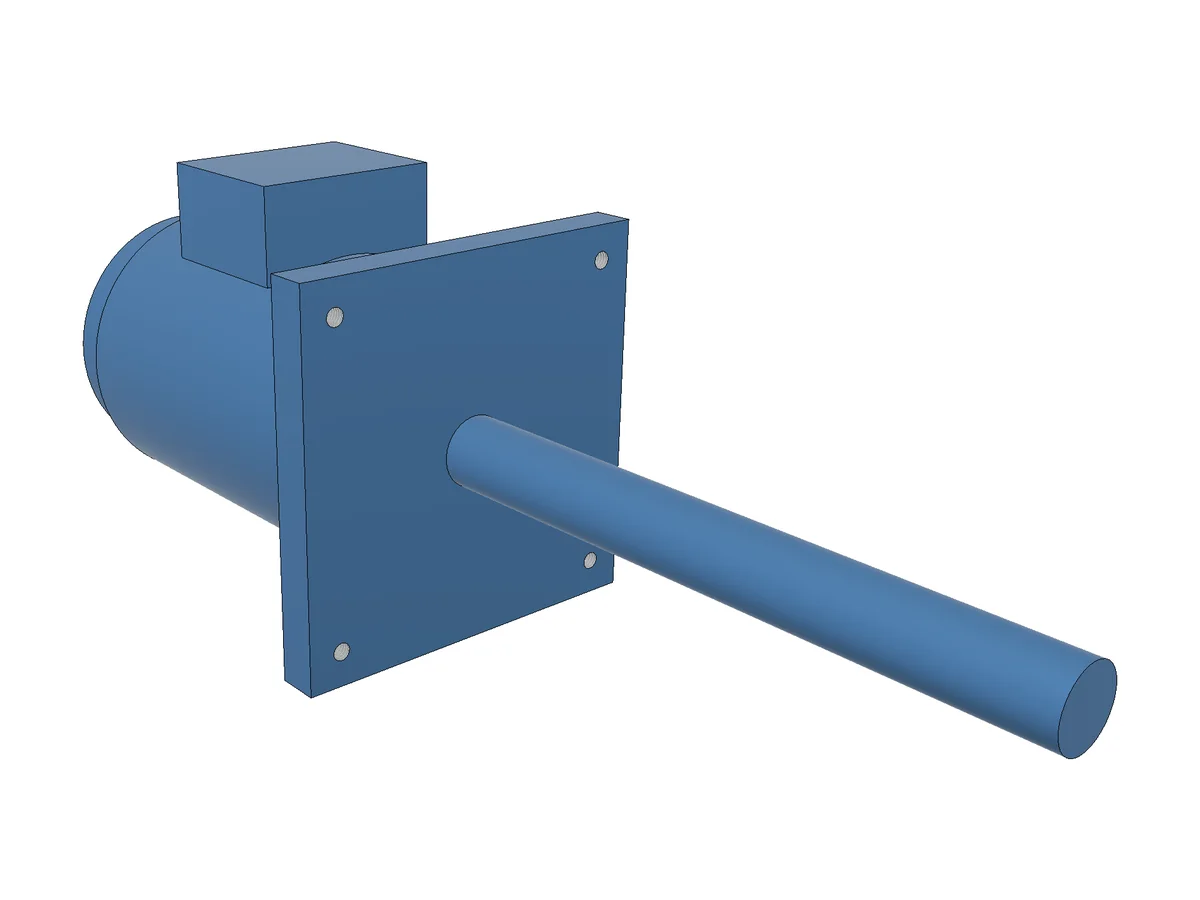
Gear Motor v1
Not changed. A bought motor keeps its holes: its flange face was picked as the centres, and only the bracket was drilled to its four M6 threads.
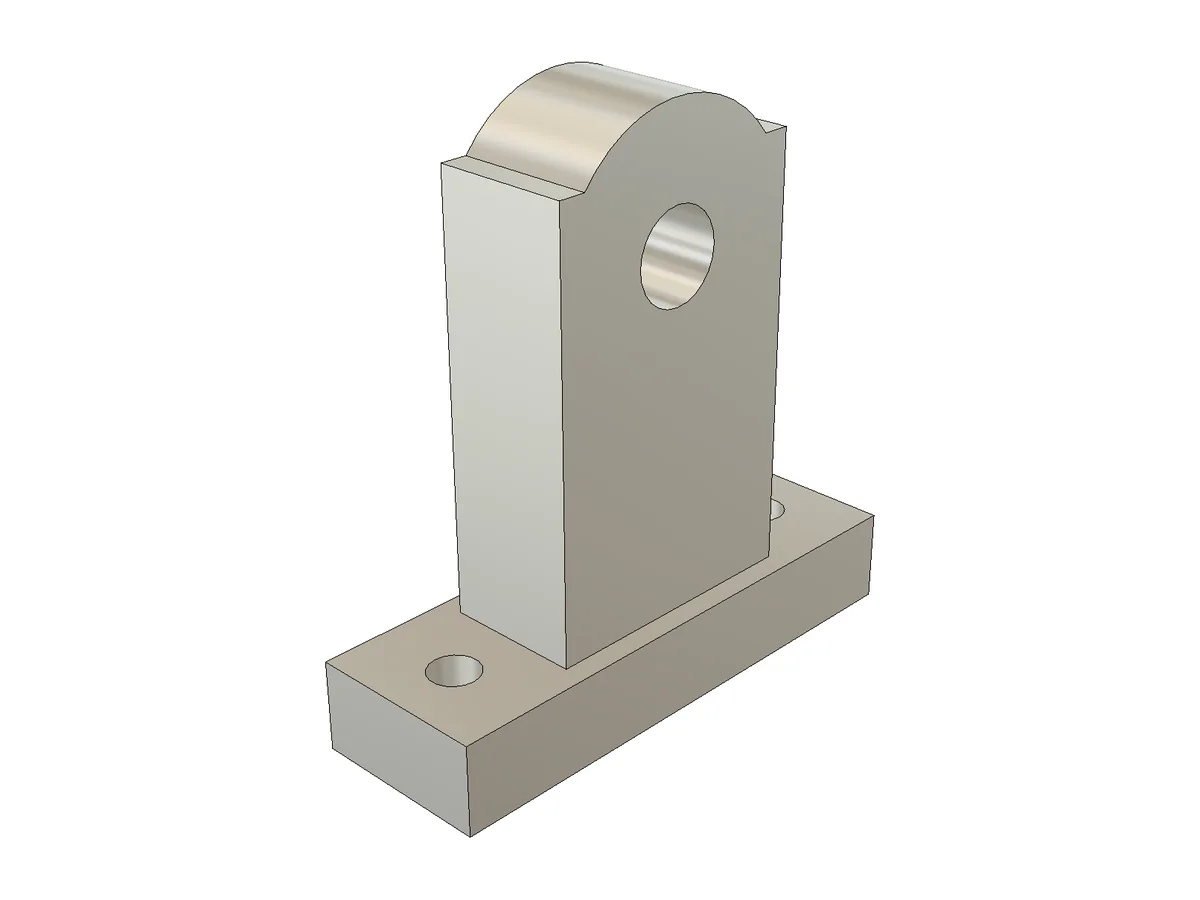
Bearing Block v2
2 × Ø11 clearance holes for the M10 bolts that go through the base plate.
The base plate and the bracket each belong to two joints, so each got two new versions.
Assembly Cut
Any shape, through several parts
Model the cutter as a body of any shape, straight or not: a pipe bent in 3D, a twisted duct, a keyhole passage, a bore with a recess. Pick the parts it passes through and run Assembly Cut. Each part is cut where the cutter crosses it, in its own component or linked file, and linked files are saved for you. The cutter is kept: change it and Update All cuts again. Intersect keeps only the common part instead.
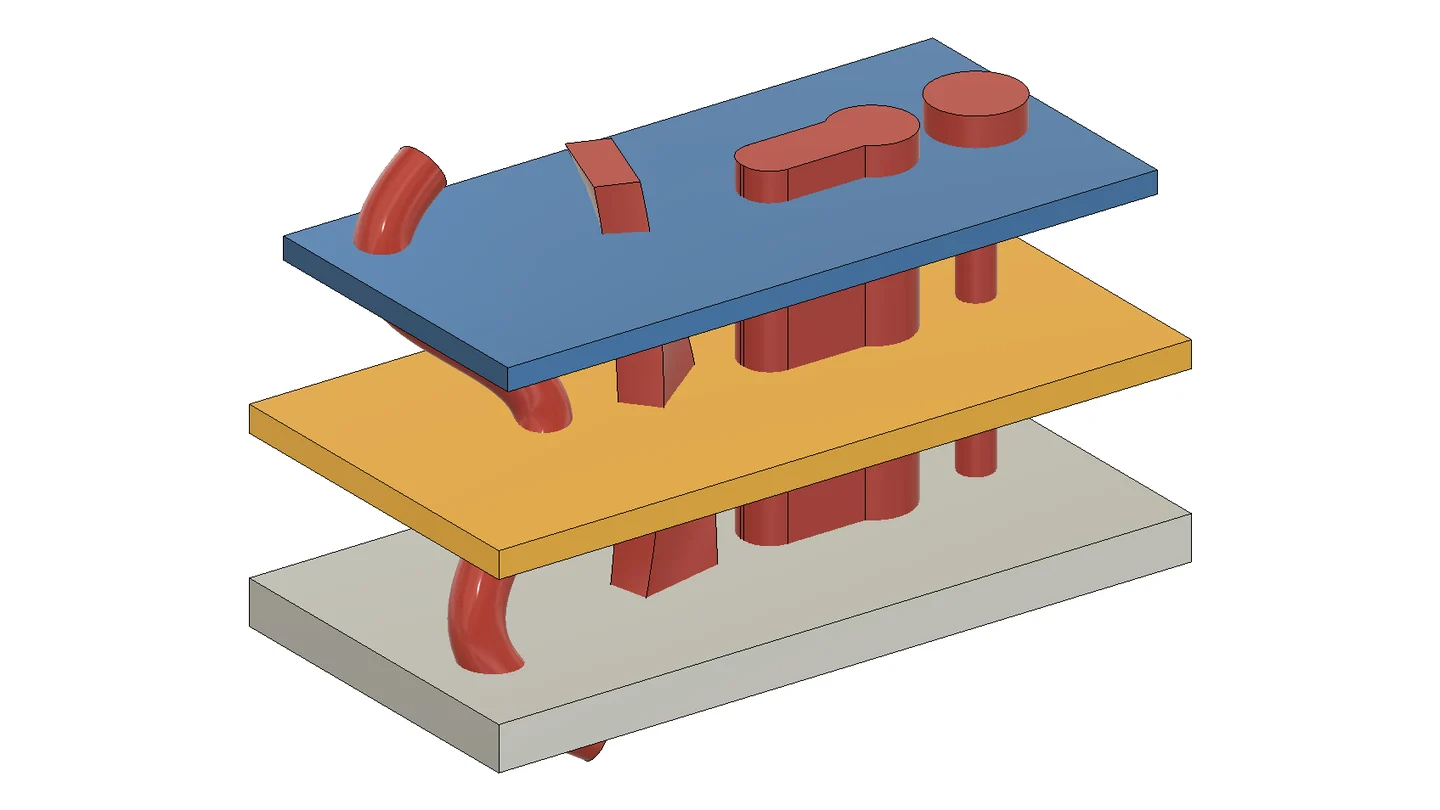
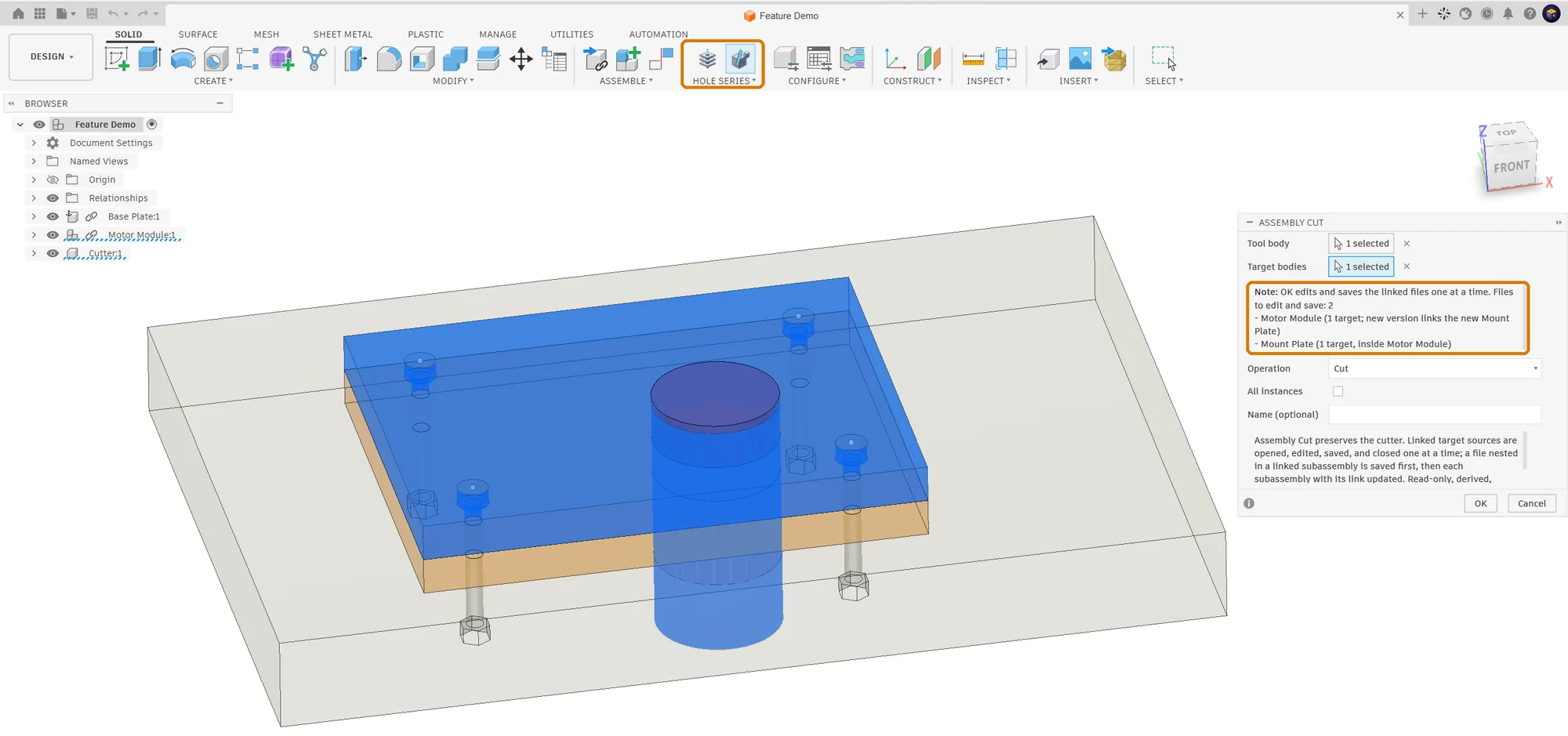
The dialog names the files it will change
Pick the cutter body and the parts it goes through. Before you press OK, the note lists every linked file that will get a new version. OK is the only step left: the message at the end names each file it saved.
Next to Fusion's Insert Fastener, Edit in Place & other CAD
Fusion puts a bolt in a hole. This makes the holes.
Fusion's Insert Fastener places a screw, nut or washer from its library into a hole that is already modelled. Unlike SolidWorks Hole Series or Inventor Bolted Connection, native Fusion leaves the hole-making to you: sketching or projecting holes across parts with Edit in Place or Insert Derive, setting the right hole type on each side, and doing it all again when M8 becomes M10. Assembly Hole Series does that work.
| Job | Fusion on its own | With Assembly Hole Series |
|---|---|---|
| Holes through every part of a joint | Fusion on its ownSketch and cut the hole in each part, with the right type for each side | With Assembly Hole SeriesOne Hole Series: clearance, tapped, counterbore, countersink, nut pocket or slot, each part on its side |
| Hole sizes | Fusion on its ownLook up the clearance, counterbore and thread depth for each screw and material in tables | With Assembly Hole SeriesFilled in from ISO 273, DIN 974, DIN 74 and VDI 2230 for the screw, the head, the end of the joint and the material |
| Screws, washers and nuts | Fusion on its ownInsert Fastener or McMaster-Carr into the existing holes: size from the hole, length from the list or Auto | With Assembly Hole SeriesInsert Fastener into holes made for that screw; the bolt list gives each screw its standard length |
| Rivet nuts, press-in nuts and heat-set inserts | Fusion on its ownLook up the maker's hole size and depth, then model each hole | With Assembly Hole SeriesPick the part number: the maker's hole and depth, checked against each part |
| Dowel pins | Fusion on its ownThe fastener library has bolts, screws, nuts, rivets and washers, no pins: model the pin and its reamed holes | With Assembly Hole SeriesReamed H7 holes, and ISO 8734 pins of a length that fits the joint in the bolt list |
| Change M8 to M10 | Fusion on its ownChange each hole, then each fastener | With Assembly Hole SeriesOne edit: the holes change in every part, and the Fusion fasteners in them are resized |
| A motor or rail with its own holes | Fusion on its ownMeasure or project its hole pattern into your part | With Assembly Hole SeriesPick its face: its holes become the centres and the size is read from them |
| External linked part files (xrefs) | Fusion on its ownOpen, change and save each file, or use Edit in Place / Insert Derive one at a time | With Assembly Hole SeriesEach file is drilled and saved for you, also inside linked subassemblies |
| A cut through several parts | Fusion on its ownCut each part in turn, opening each linked file or using Edit in Place | With Assembly Hole SeriesOne Assembly Cut of any shape: every part is cut, linked files are saved, and the cut is redone on Update All |
| Ordering and the shop | Fusion on its ownParts lists and hole notes in the drawings | With Assembly Hole SeriesStraight from the assembly: a bolt list with standard lengths, order designations and search links, and a hole chart per part |
Insert Fastener remains the tool for the hardware itself: place it in these holes. Its library also has rivets.
Coming from SolidWorks Hole Series or Inventor Bolted Connection?
| In SolidWorks or Inventor | In Assembly Hole Series for Fusion 360 |
|---|---|
| Hole Series (head recess, mid clearance, threaded or clearance end) | Hole Series, across local or linked part files |
| Slotted holes for adjustment | Slot travel in the first, last or every part of the series |
| Smart Fasteners / Bolted Connection Generator | Hole Series sized for the joint, Fusion's Insert Fastener for the hardware, the bolt list for the lengths |
| Assembly Cut propagating to part files | Assembly Cut, across local or linked part files |
| Favorite fastener templates & BOM rollup | Connection Library recipes and Export Bolt List |
Step by step
Five jobs you would otherwise repeat in every part file
Jobs 1 to 3 follow the drive mount; jobs 4 and 5 use other assemblies. In each, the parts are separate Fusion files linked into the assembly, and every picture is a real run. Components of one design work the same way, without the file saves.
1.Holes through several parts, written into each part file
Pick the centres once in the assembly (sketch points, vertices or circular edges) and the parts, or let it find the parts on the hole axis. Assembly Hole Series drills the bracket and the base plate, each in its own file with the right hole for its side: clearance in the bracket, M8 tapped in the plate. Both files are saved and the assembly is updated.
2.Sized for the screw and the joint
Choose the screw, the head on the surface or sunk, and how the joint ends; the counterbore, the clearance and the thread depth fill themselves in from the standards. Place the screws with Fusion's Insert Fastener.
3.Change it once, every file follows
Open the joint again with Edit Assembly Feature and change M8 to M10. Assembly Hole Series makes the bracket holes bigger and re-taps the base plate for M10 where the holes are, saves both files, and the screws in the holes are resized.
4.A part moved? Update All brings the holes back in line
Another assembly: a sensor bracket bolted to a machine upright, both separate Fusion files. The screw centres come from the bracket itself, two layout points in its own file, so they move with it. The bracket is moved 40 mm up, and the holes no longer line up. Update All measures the joint again, drills the upright and the bracket at the new height and saves both files.
Not sure what moved? Audit Assembly checks every joint first and changes nothing. After the move above it marks the Hole Series [CHANGED]: the bracket, one of the drilled parts and the owner of both centre points, has moved. Update All is the next step.
Assembly Hole Series audit
Objects: 1 | Healthy: 0 | Changed: 1 | Errors: 0 | Orphans: 0

[CHANGED] Hole Series 1
- INFO: Target 1 occurrence has moved.
- INFO: Placement 1 occurrence has moved.
- INFO: Placement 2 occurrence has moved.
5.Need more holes later? Replace the centres
A cover screwed onto a gear housing, again two separate Fusion files, with four M8 screws at the corners. In Edit Assembly Feature, Replace hole centers takes the complete new set: the four corners and two points in the middle of the long sides. Assembly Hole Series drills the cover and taps the housing for all six and saves both files.
Mount to existing holes
Bolt a motor or a rail on the holes it already has
A bought part comes with its holes: the threads in a motor flange, the counterbored holes of a linear rail or a bearing block. Pick the face of that part that sits on your parts as the hole centres. Assembly Hole Series finds every round hole on it, reads the size from the Fusion thread or the diameter, and drills the matching holes in your parts. The bought part keeps its holes as they are.
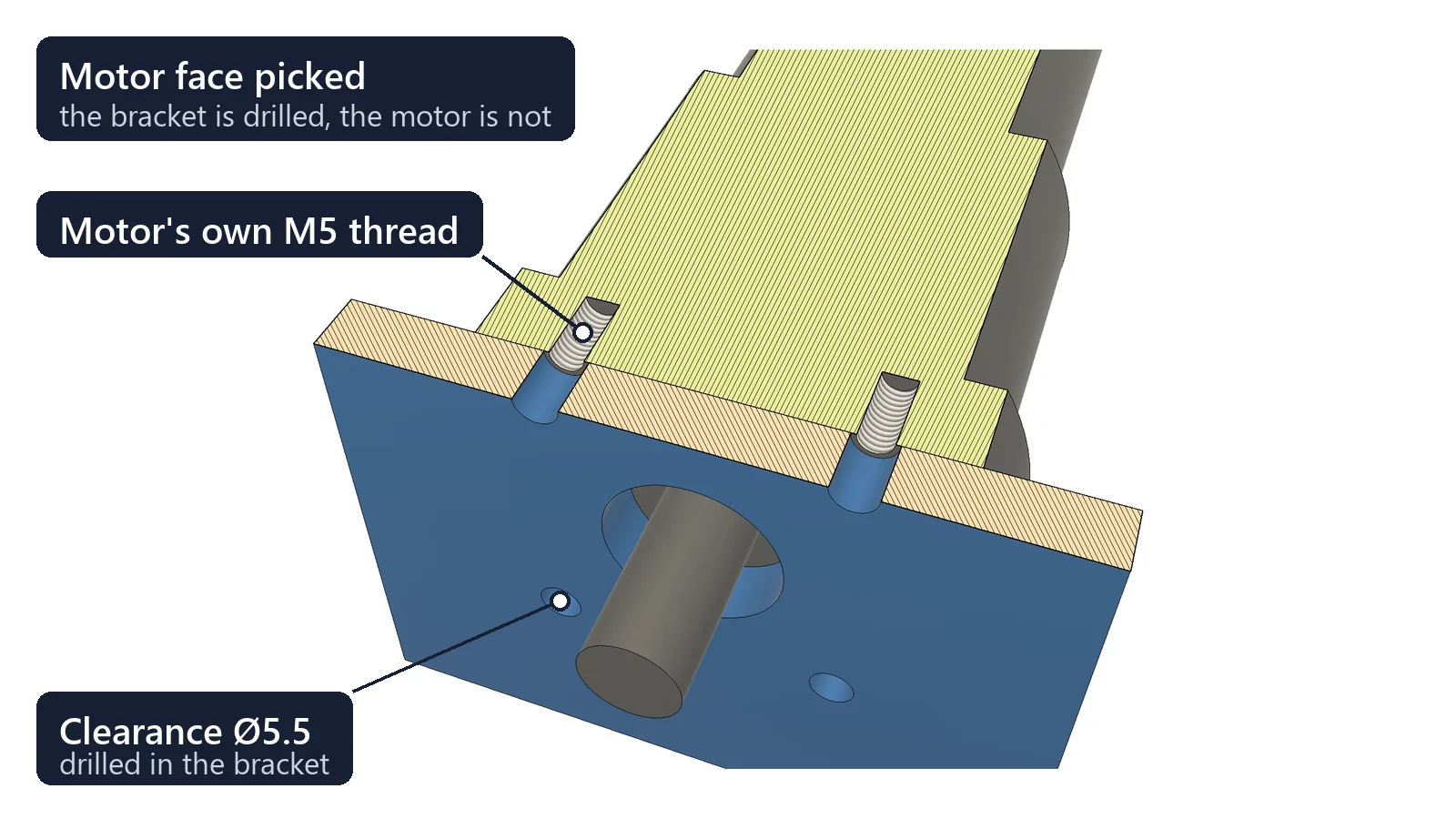
Clearance holes work the other way round
A part with threads takes the screws from your side: your parts get clearance holes, and the screws end in its threads, no deeper than the threads go. A part with clearance holes, like a linear rail or a bearing block, takes the screw heads: your plate is tapped or gets nuts underneath.
- ✓With Keep mounting part, on by default, the bought part is not drilled, also on Edit and Update All.
- ✓A screw that passes the part first starts on the floor of its counterbore: the thread below and the bolt list's length count the part's thickness.
- ✓The dialog says how it read the holes. If the reading is wrong, for example 6 mm holes for M5 screws taken as M6 threads, correct it before OK.
Sizes from the standards
Holes made for the screw you choose
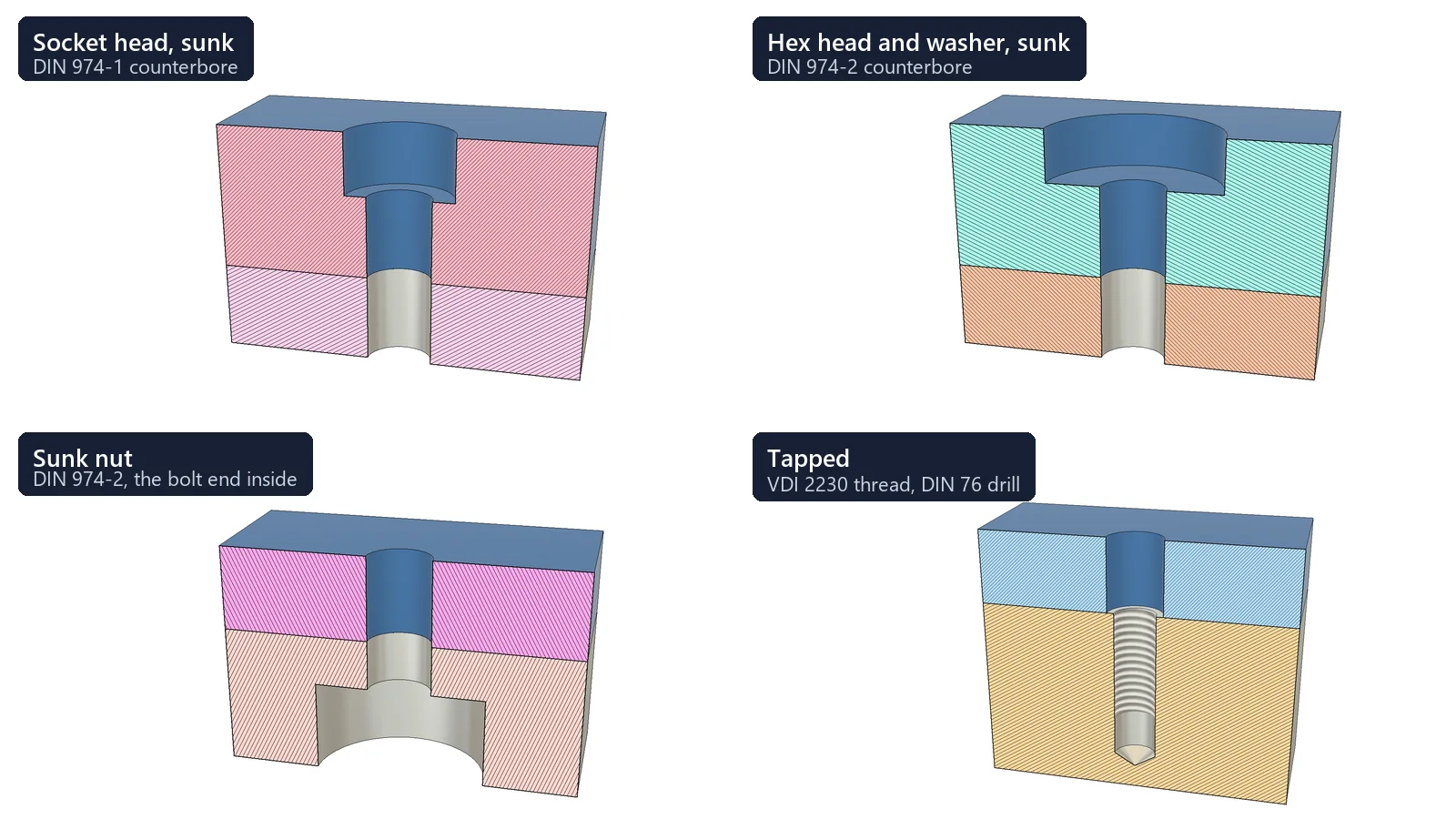
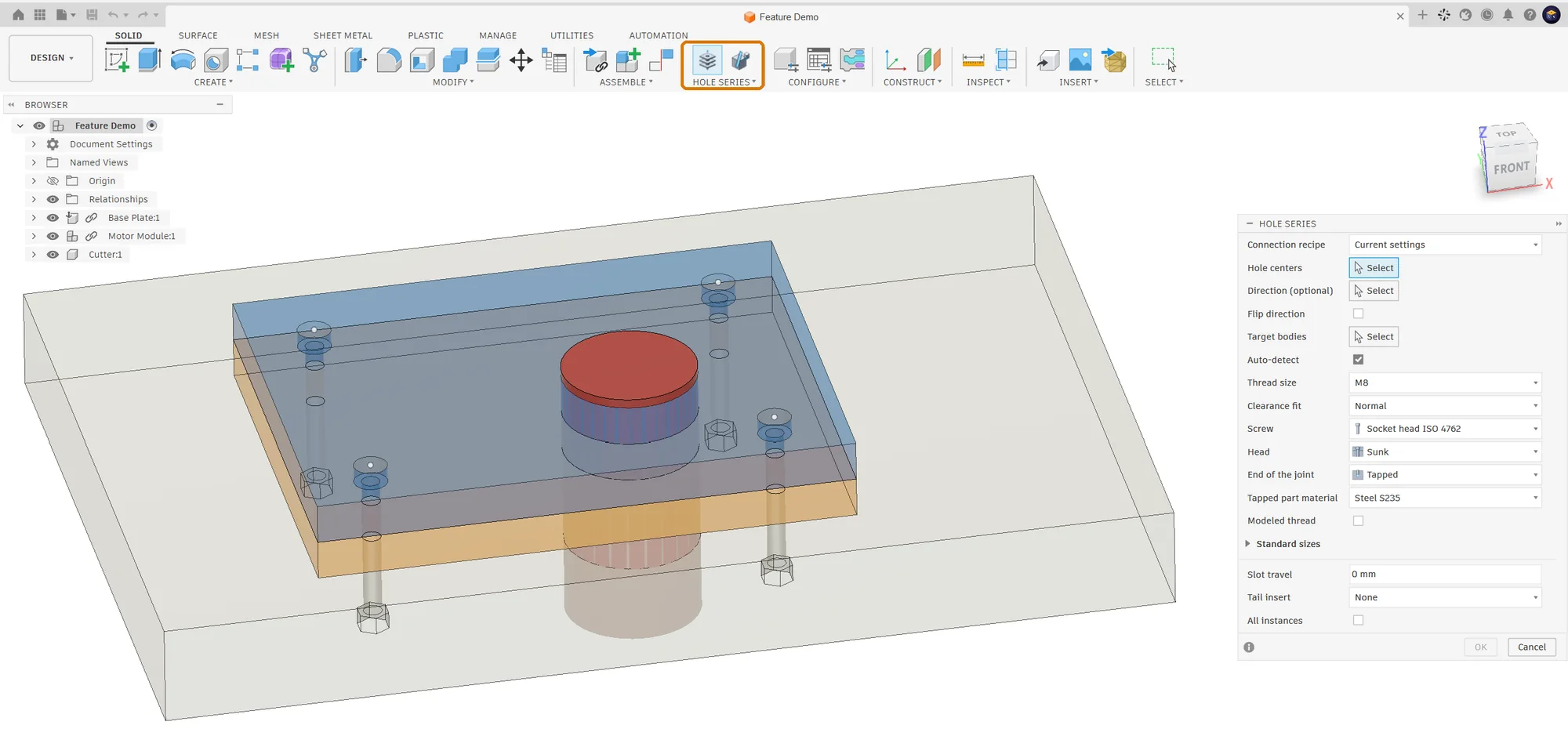
Choose the screw, whether its head sits on the surface or is sunk, and how the joint ends: a nut, a sunk nut, a captive nut, a thread or nothing. Every size fills itself in from the standards; open Standard sizes only to change one. Then place the screws with Fusion's Insert Fastener: they fit the holes, and the bolt list gives their lengths.
| The hole | Standard | M8, for example |
|---|---|---|
| Clearance hole: Close, Normal, Loose | ISO 273 | 8.4, 9 or 10 mm |
| Counterbore for a socket or low head | DIN 974-1 | 15 mm wide, 8.6 mm deep (5.6 mm for a DIN 7984 low head) |
| Counterbore for a hex head or a sunk nut, with room for a socket wrench | DIN 974-2 | 24 mm wide; a hex head with its washer 7.3 mm deep, a nut with its washer at least 8.8 mm, deeper when the bolt end would stand out |
| Countersink for ISO 10642 | DIN 74 form F, 90° | 18.3 mm |
| Tap drill | ISO 2306 | 6.8 mm |
| Thread in the tapped part | VDI 2230, by material, plus 2 pitches | 10.5 mm in S235 steel, 13.7 mm in aluminium |
| Drill depth past the thread | DIN 76-1 | 6.2 mm |
A tapped hole as deep as it needs
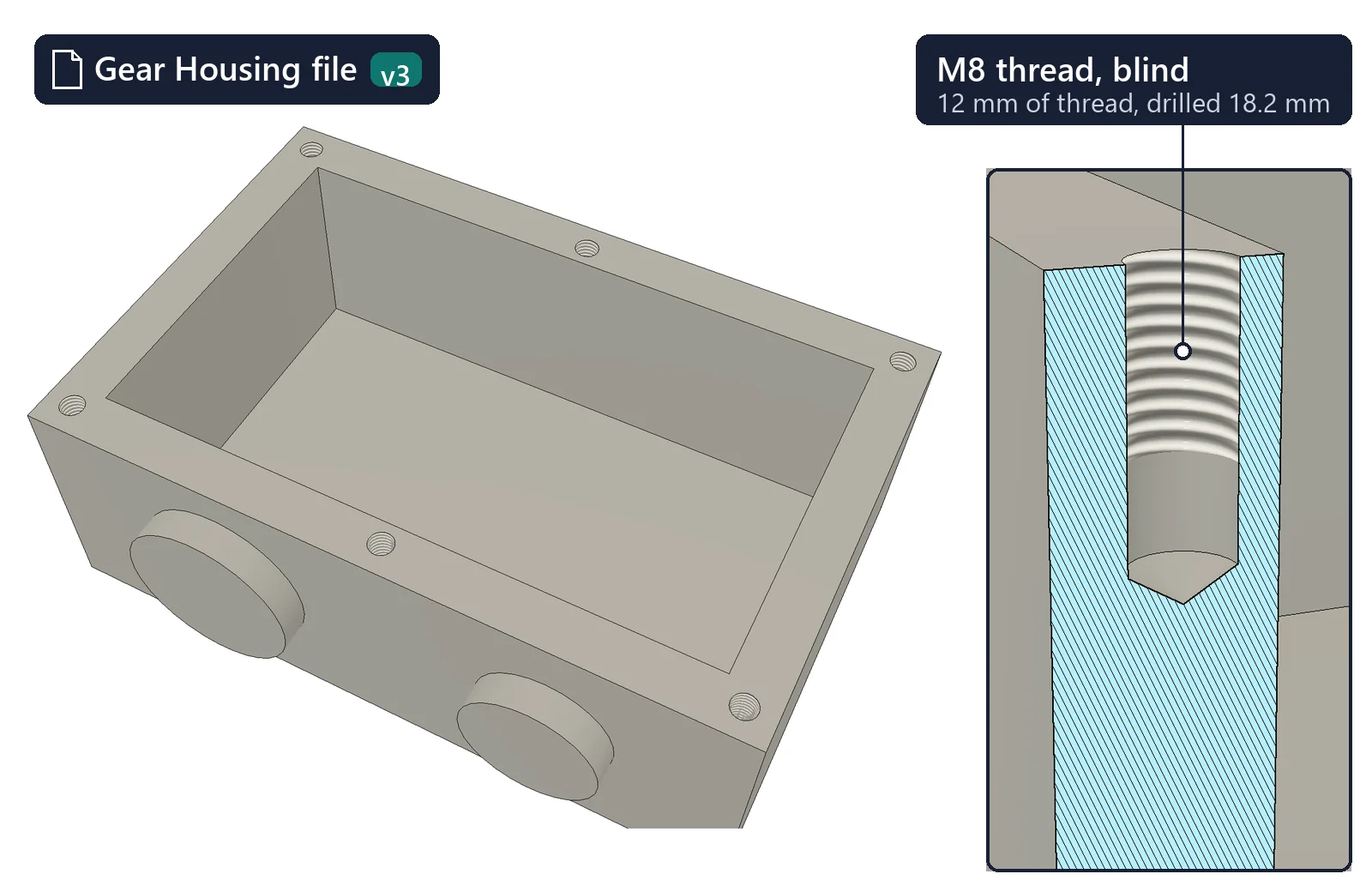
In a thick part the thread is blind: the shortest standard screw that reaches the minimum engagement for the part's material sets the thread, drilled the DIN 76-1 overhang deeper. M6 under a 10 mm part in S235: an M6 × 20 screw, 10 mm of thread, drilled 15.1 mm.
Checked before it goes wrong
A counterbore deeper than its part is refused before OK. A countersink or a sunk nut as deep as its part, and a part tapped through that holds less thread than the screw needs, are named after OK.
Metric, fine and UNC/UNF
Metric sizes with fine pitches from M8x1 to M24x2, and fourteen UNC/UNF sizes from #6 to 1/2 inch with 82° countersinks. Tapped holes use the exact Fusion thread.
Holes for rivet nuts, press-in nuts and heat-set inserts
No maker's catalogue to look up: pick the part number under Tail insert and the last part gets the hole its maker specifies: PEM self-clinching nuts (steel and stainless, M2.5 to M8), Böllhoff RIVKLE blind rivet nuts (M3 to M14, one entry per grip range) and PEM heat-set inserts for plastic and 3D-printed parts (M2 to M6, a blind hole at the maker's depth). The sheet thickness, a rivet nut's grip range and an insert's depth are checked before anything is drilled.
Adjustment slots where a part has to move
Set Slot travel and the round holes become slots as wide as the hole. Choose the part under the head, the last part or all of them; the others keep round holes. Here a motor plate gets 14 mm of travel, for example to tension a belt, and the frame under it is tapped M6. Turn on a washer under the head and the bolt list counts one for each slot.
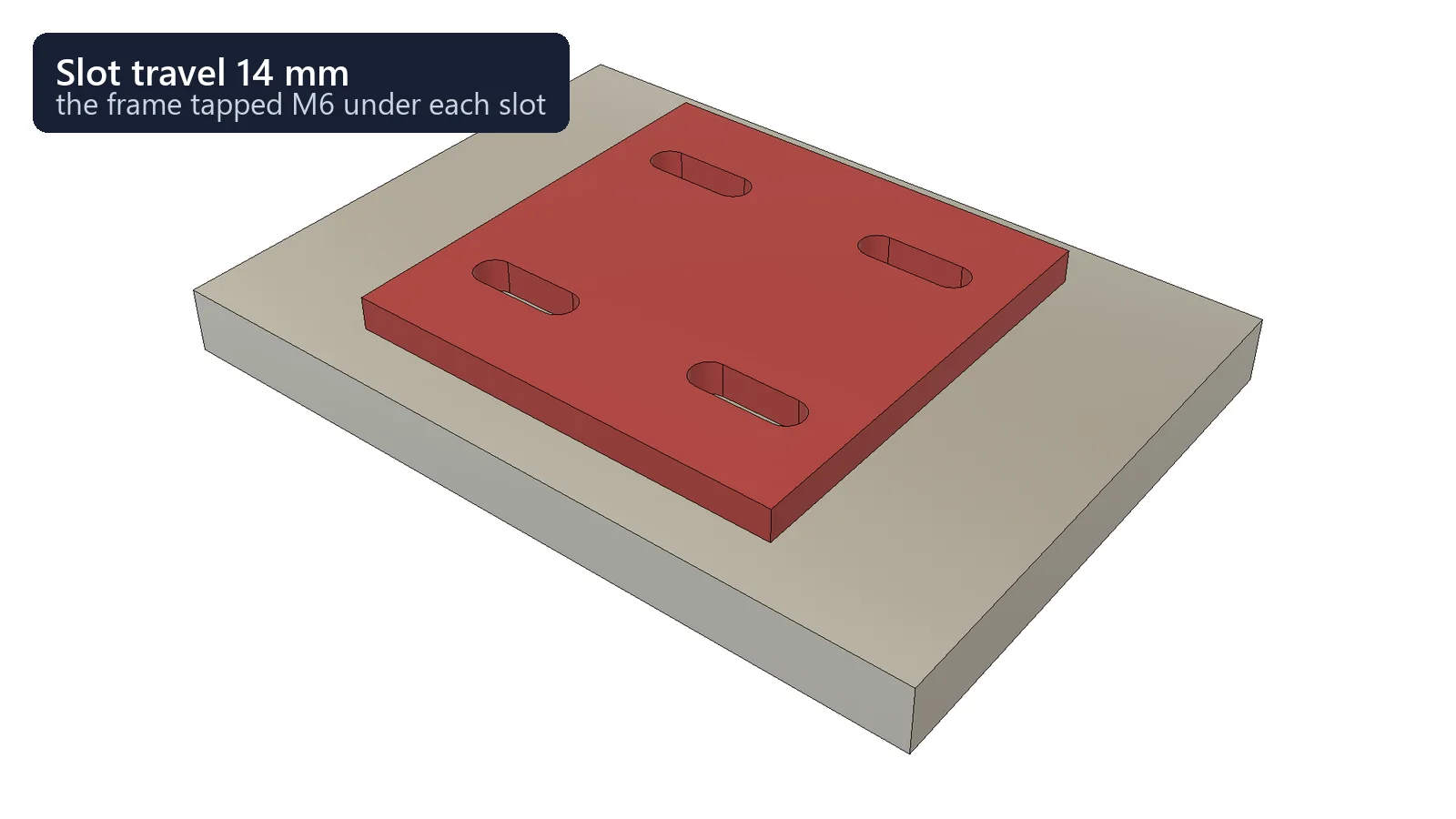
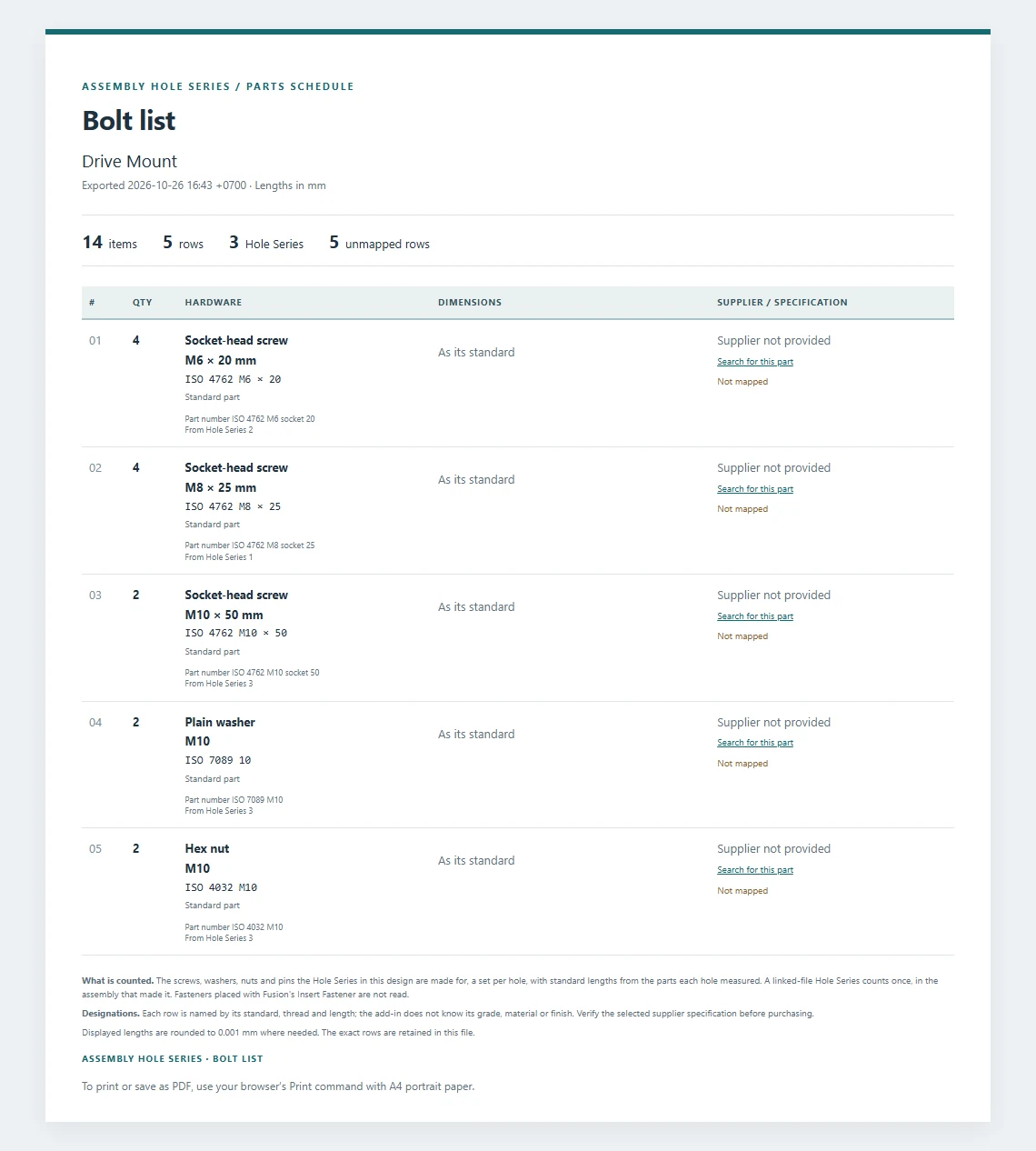
Export Bolt List
A bolt list you can order from
One export lists every screw, washer, nut and pin the joints are made for: a set per hole, each screw at the shortest standard length for the parts it passes, a through bolt long enough for its nut and two pitches past it, a tapped screw long enough for the thread its material needs. Each row names the part the way suppliers list it, such as ISO 4762 M8 × 25, with a link that searches for it.
- ✓CSV for spreadsheets and purchasing.
- ✓A self-contained HTML page with an A4 print layout.
- ✓A PDF on A4 pages, ready to print or send: the table head repeats on each page and the search links can be clicked.
- ✓Your company grades, your supplier's search, and the supplier, part number and description you mapped, with missing ones shown.
The sample is the bolt list of the drive mount above, exported as it is: 14 items in five rows from its three Hole Series. Grades and suppliers are not filled in for you, and the list has no prices.
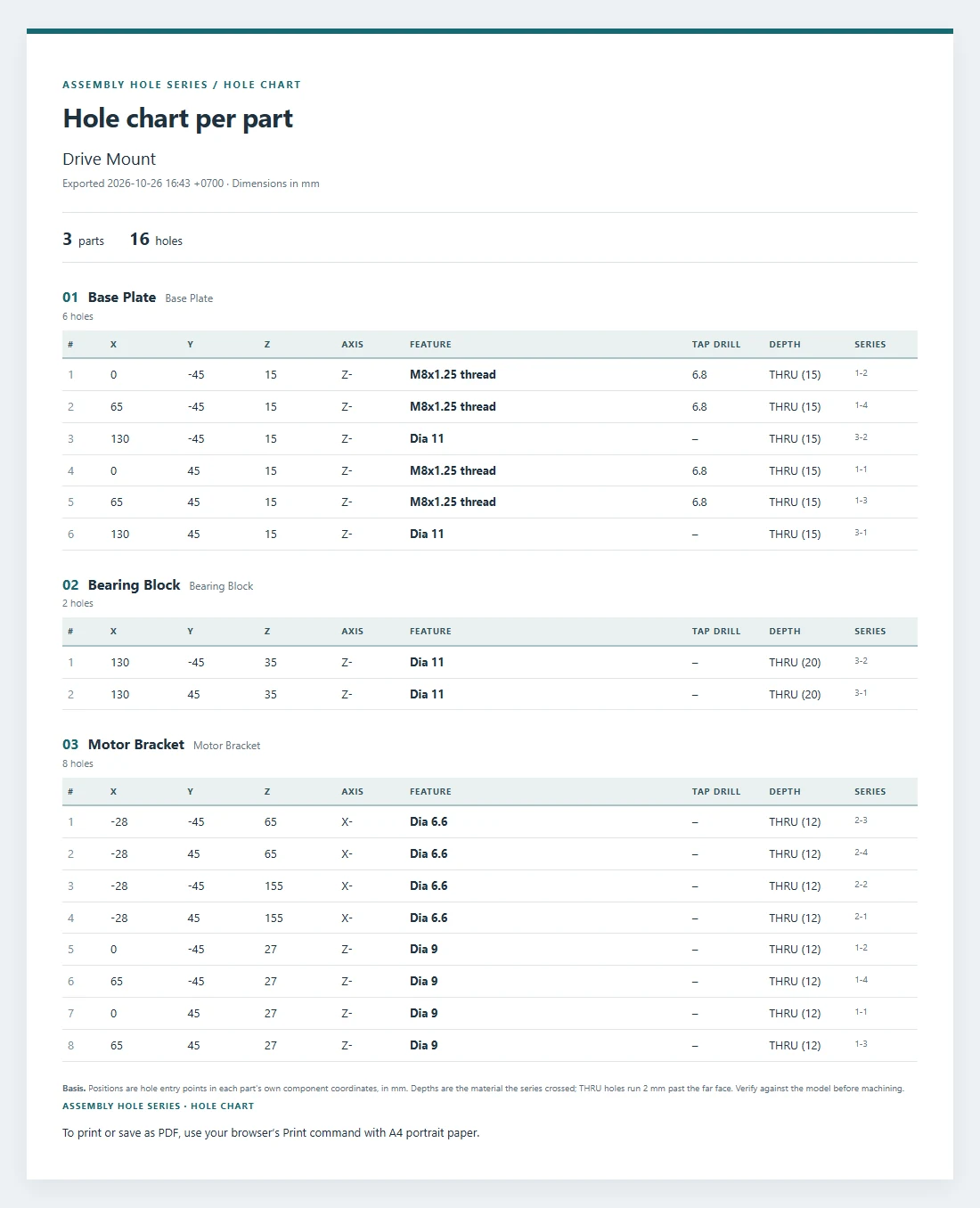
A hole chart per part for the shop
The same command writes a hole chart. For every part a Hole Series drilled, it lists each hole at its entry point in that part's own coordinates, with the axis, diameter or thread, tap drill, slot, counterbore or countersink and depth, as CSV, a printable page or a PDF.
- ✓A part used several times is charted once.
- ✓Holes made by other Fusion features are not listed.
- ✓It is a separate export, not a hole table on a Fusion drawing.
Also exported: recipes and the catalogue
Connection recipes: JSON
Export your saved joints (hole size, screw, head and end) and import them on another computer, so the whole team starts from the same connections. Imports are checked before they replace anything.
Company catalogue: JSON
Export the supplier part numbers you mapped, your grades and your supplier's search, and import them elsewhere. The bolt list uses them on its next export.
Eight commands
In the Solid tab, next to Assemble
Hole Series and Assembly Cut sit on the ribbon; the rest are in the Hole Series panel menu.

Hole Series
The holes of a bolted joint through every selected part: choose the screw, its head on the surface or sunk, and the end: a nut, a sunk nut, a captive nut, a thread or nothing. Sizes from ISO 273, DIN 974, DIN 74 and VDI 2230. Also slots, H7 dowel and shoulder screw holes, and the holes of PEM nuts, RIVKLE rivet nuts and heat-set inserts. Pick a motor or rail face to use its holes.

Edit Assembly Feature
Change a saved joint: size, screw, head, end, hole positions or the cutter of an Assembly Cut. Linked files are updated again for you, and the Fusion fasteners in the holes are resized.

Update All
Rebuild every managed joint in order, holes then cuts, after parts moved or changed shape.

Connection Library and Batch Change
Twelve ready recipes and your own. Change the size of selected connections together, for example M5 to M8.

Export Bolt List
The screws at their standard lengths, the washers and nuts each joint takes, counted, each row with its order designation and a search link, as CSV or a printable A4 page. Also a hole chart per part.

Assembly Cut
One Cut or Intersect through several parts, local or linked, such as a cable passage, kept editable.

Audit Assembly
Check every managed joint before you release drawings: missing or changed geometry and references.

About Assembly Hole Series
Help, version, license status and support.
Every joint stays editable
The assembly keeps each joint as one managed object: its centres, parts, screw and sizes. Edit Assembly Feature opens it again, under the same rules as Hole Series.
Reuse a joint, change many at once
Start a Hole Series from one of twelve recipes (tapped fixtures, through bolts, a captive nut, a flush panel, UNC/UNF examples, a PEM mounting hole) or from your own saved joint. To change a size across a design, filter the connections by their current size, select them and preview the change before OK. On a fixture built from components of one design, for example, one Batch Change turns four M5 joints into M8: holes, counterbores and threads.
Read the connection library guideAssembly Hole Series · Windows and macOS
Try it on your next bolted assembly
US$49/year per useror US$8/month
- 1. Buy by card. Pay by the year or by the month through Lemon Squeezy with the email of your Autodesk account: the license is issued to that account.
- 2. Download and install. Download the Windows or macOS build below with the same email, then install it with the installation guide.
- 3. Run your first Hole Series. Sign in to Fusion with the same Autodesk account. If the license does not show yet, open About Assembly Hole Series and click Check license now.
Read the guide first
The user guide covers each command, the linked-file rules, the standards behind every size and what to do if a job stops.
Download
Download the current build
With a license (a purchase or a license from us), download the newest Windows or macOS build here with the email of your Autodesk account, or from inside the add-in (About › Download latest version). The add-in checks your license when it starts, so the file is only useful with a license.
No license yet? Buy by email. Then install it with the installation guide.
Latest build
The same add-in runs on Windows and macOS. Pick the machine you will install on.
Checking…
Adding the ZIP by hand? In Scripts and Add-Ins › +, select the folder that contains the .manifest file, not the file: on Windows, the Contents folder inside the .bundle.
Updating or switching versions? Clear Run on Startup for the old add-in, Stop it and close Fusion before replacing files. Restart Fusion before you Run the new version.
Before you start
Assembly Hole Series FAQ
Fusion already has Insert Fastener. Why would I need this?
Insert Fastener places library fasteners in holes that are already there. Assembly Hole Series makes those holes: the matching hole in every part of the joint, sized to the standards for the screw and the way the joint ends, also in separate linked part files, like a SolidWorks Hole Series or an Inventor Bolted Connection. Place the screws with Insert Fastener: Auto-detect never drills them, and when you change the holes, the fasteners in them are resized with the holes. The bolt list counts the hardware every joint needs.
Do I need linked part files?
No. The parts can be components of one design; then there are no files to save. Linked part files are where it saves the most time.
Are the holes real Fusion features?
Yes. Each part file gets ordinary Fusion hole features in its own timeline, at the right place in its own coordinates. Fusion drawings, CAM and other tools see normal holes. Where a hole enters a round tube or another curved face, the part gets a plain drilled cut instead.
Does it run on macOS?
Yes. The build runs in Autodesk Fusion on Windows and macOS, and both builds are published for each release. One subscription unlocks both.
Supported scope
Current limitations
Check these against your file structure before you start.
A Hybrid design
Create, Edit and Update run in a Hybrid design with Capture Design History; document types are not converted for you.
Linked structures
Parts linked directly or inside a linked subassembly, two link levels down. Configured, derived, read-only and out-of-date parts are refused before any file changes, and so is a nested part reached through two subassemblies.
Linked edits
A linked joint keeps its set of part files; to add or remove one, delete and create the joint again. Recipes, Batch Change and slots work on local components only.
Cloud saves are one by one
Every file is checked before the first one changes, then they are saved one after another. If a later file fails, the versions already saved stay and the message lists them; there is no rollback of several files together.
Mounting faces
A mounting face reads round holes only. A size read from a hole diameter is a best match: check it before OK.
Sizes without a source
Sizes without sourced data, such as a sunk nut in M3 or an inch size, or dowel pins above 20 mm, are refused instead of guessed.
Planned improvements
Development roadmap
Not in the current release, and without release dates.
Recipes and Batch Change for linked joints
Reuse recipes and change sizes of selected joints whose parts are linked files, with the same file checks and recovery.
Configured and derived parts
Joints on configured designs and derived parts, with clear rules for shared definitions and update order.
Need one of these? Tell us about your assembly so we can work on a real case first.
More for Autodesk Fusion (Fusion 360)
Combine with other VanThanBK fabrication & assembly add-ins
Frames, joints and cut lists
 Steel Frame & Weldments Pro
Tube folding, welds and frame analysis in Fusion
From tube routes to fabrication packages
 Sheet Metal & Press Brake
Bend sheets for the press brake, from the Fusion flat
 Auto Backup & Export
Local backups of your Fusion cloud designs
 Caliper – Measure and Report
Measure in Fusion, save the values, print a report