Autodesk Fusion add-in v1.0 · WindowsUS$39

Assembly Pilot

Assembly features that keep their context

Coordinate holes across a real component stack, place linked metric fasteners, and manage multi-component operations without losing track of moved or nested parts. Edit one operation, update the assembly, and audit what needs attention before handoff.

5 treatments
in one Hole Series
Auto length
linked metric fasteners
Edit / Update / Audit
saved operations
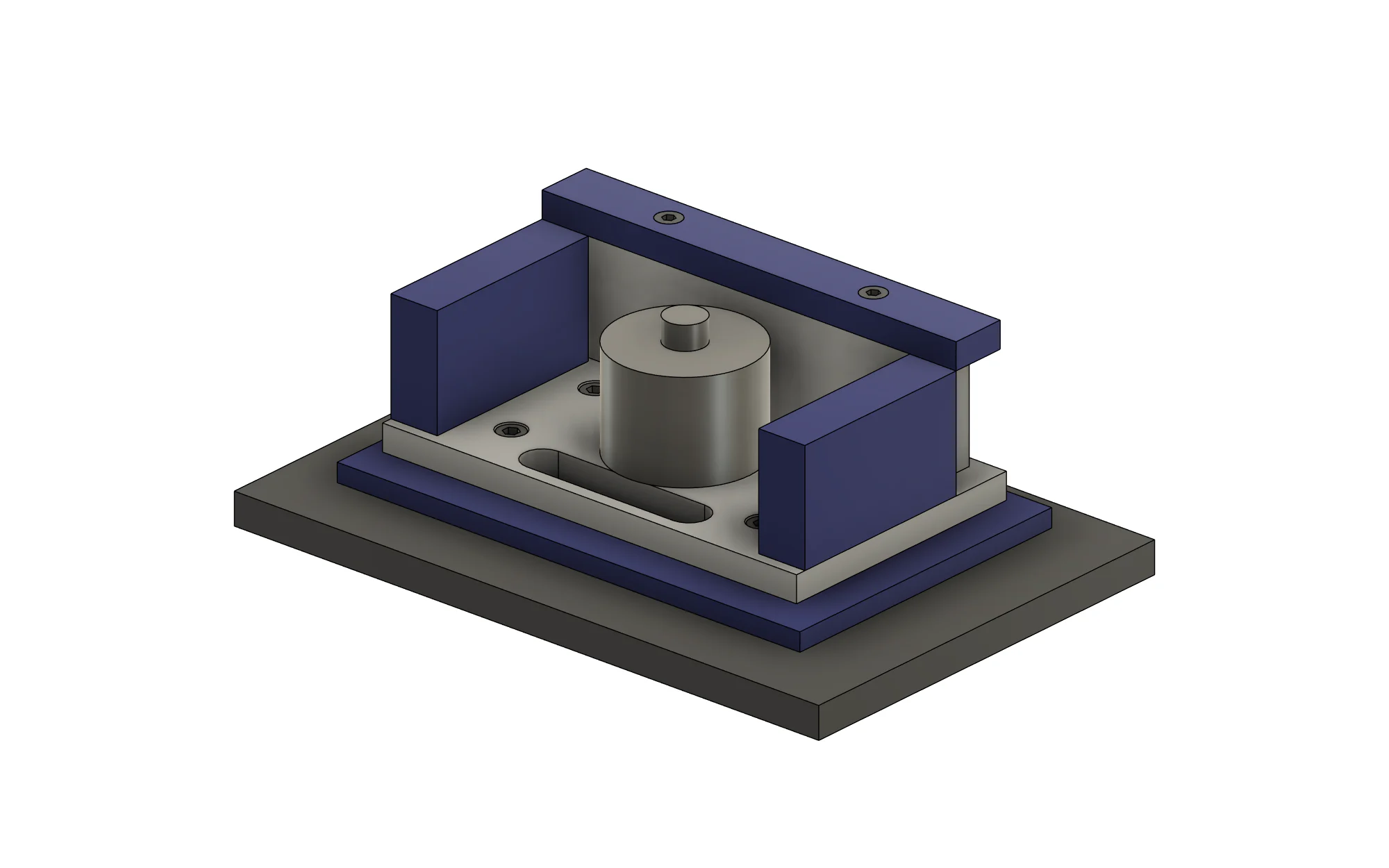
Servo indexing fixture built in Fusion with stacked plates, coordinated holes, linked fasteners and a shared cable passage
One real Fusion assembly: stacked components, coordinated Hole Series, linked Fastener Stacks and a managed multi-component cut.

Assembly-level operations

Treat the stack as a system, not a pile of separate parts

Assembly Pilot keeps the specification, affected components and generated Fusion features connected as a managed operation. The result stays inspectable and editable when the assembly structure changes.

One operation for the whole stack

Store the hole specification, selected positions, affected components and generated geometry together instead of repeating separate commands on every part.

Different treatment in each layer

Combine clearance, counterbore, countersink, tapped-hole and nut-pocket treatments in one coordinated Hole Series.

Hardware linked to design intent

Connect a metric Fastener Stack to its Hole Series, measure the real stack and select a suitable standard length automatically.

Multi-component Cut / Intersect

Use one source body across several target components and retain the operation so it can be inspected and rebuilt later.

Moved and nested context

Resolve saved operations when their components move or sit inside nested occurrences, without rebuilding the assembly feature by hand.

Edit, update and audit

Reopen one managed operation, rebuild all of them in dependency order and inspect their status before handoff.

The commands on the Fusion ribbon

Hole Series

Coordinated clearance, counterbore, countersink, tapped and nut-pocket treatments across a component stack.

Fastener Stack

Linked metric hardware with automatic length, optional washers and a matching nut.

Assembly Cut

Apply one saved Cut or Intersect operation to multiple component bodies.

Edit Feature

Reopen a managed assembly operation and change its stored specification.

Update All

Rebuild saved operations together after component geometry or placement changes.

Audit

Review managed operations and identify the items that need attention before handoff.

About

Check the installed version, trial or license status and support information.

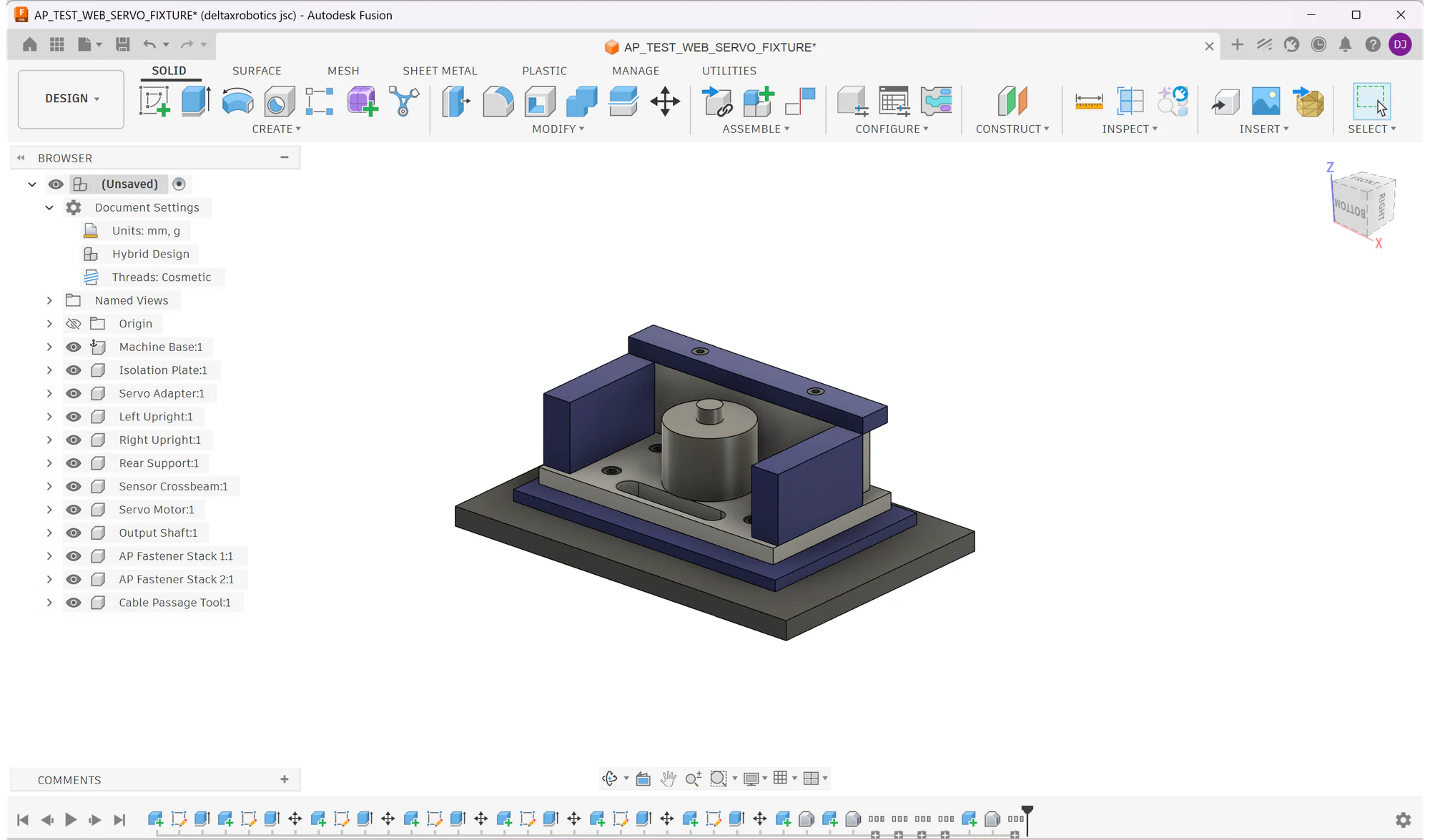
Assembly Pilot servo fixture inside Autodesk Fusion with its components, generated hardware and feature timeline visible
Full Fusion context: the assembly, component tree, generated Fastener Stacks and feature timeline remain inspectable in the design workspace.

Hole Series

One aligned operation, the right treatment in every layer

A fastened joint rarely needs the same hole in every component. Select the positions and target stack once, then define what belongs at the head, through the middle and at the far side.

  • Clearance and counterbore for a bolt head and washer.
  • Countersink where flush hardware is required.
  • Tapped treatment for the threaded component.
  • Nut pocket for a captured nut on the far side.
  • One saved specification to edit or update later.
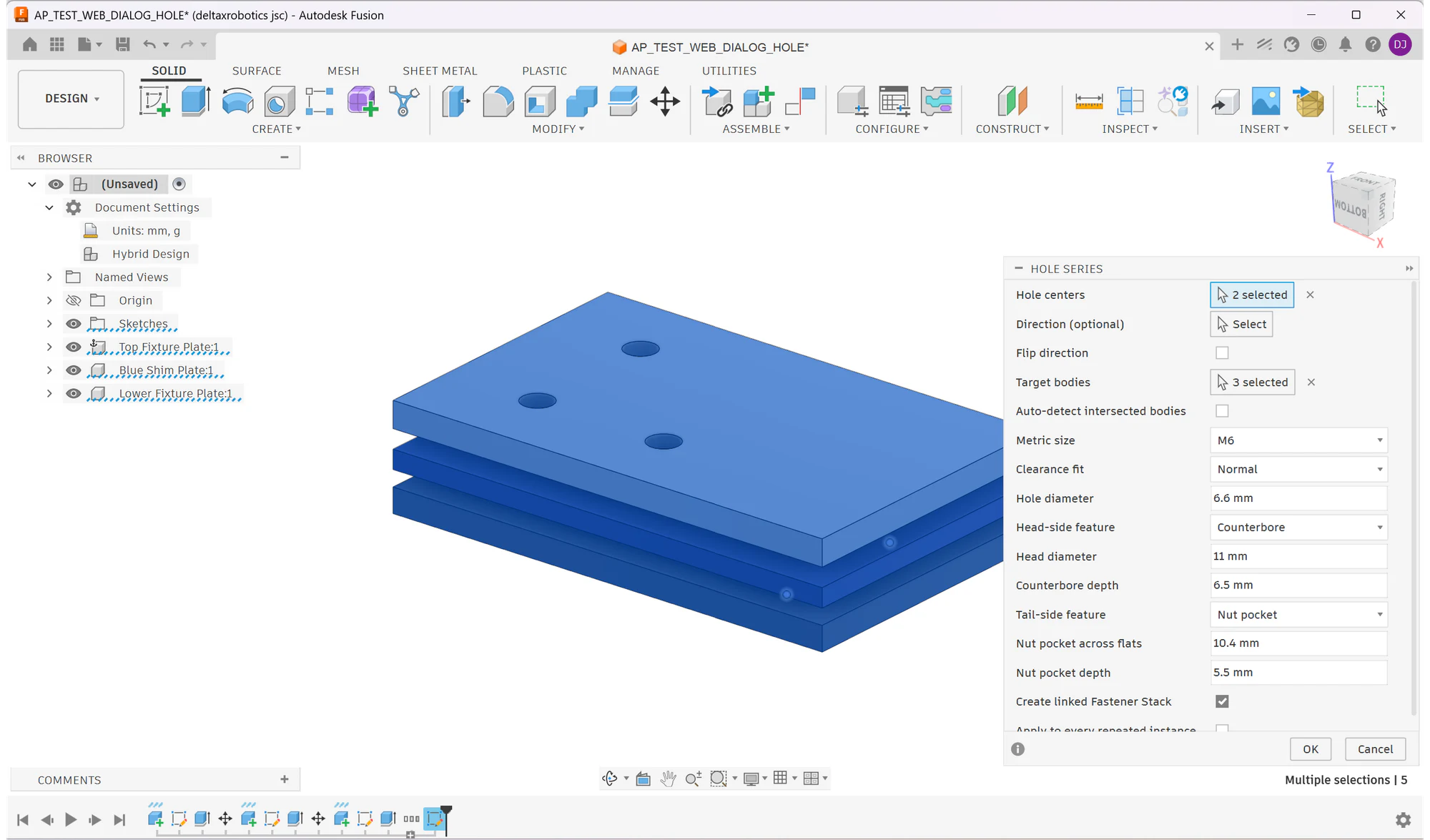
Hole Series dialog in Fusion with positions, direction, target components, metric size, fit, head treatment and tail treatment controls
Hole Series dialog: select the centres, direction and target stack; then set the metric size, fit, head-side and tail-side treatments.
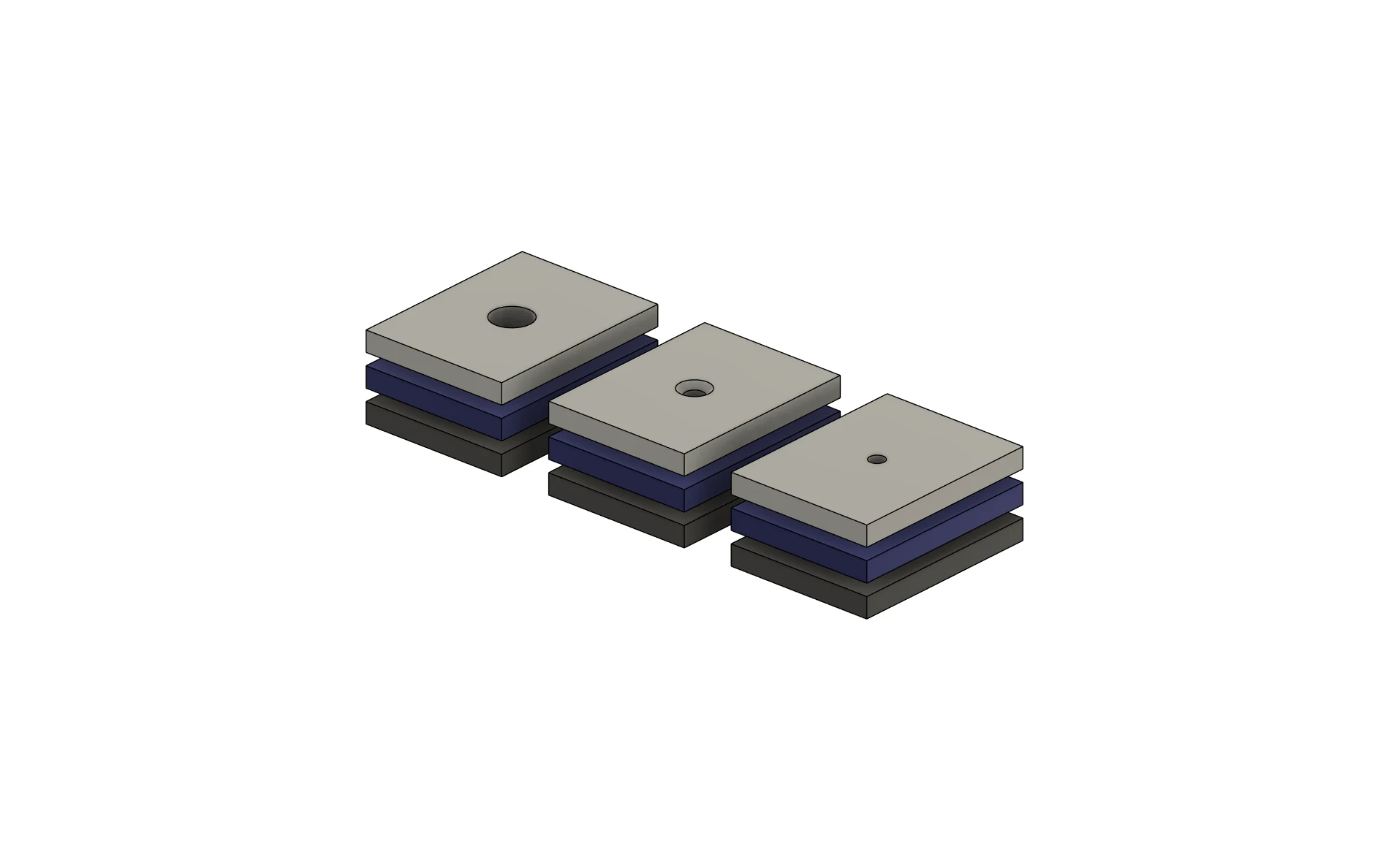
Dedicated three-layer Fusion test piece showing counterbored, countersunk and clearance hole treatments
Top side: separate hole groups make the head treatments easy to inspect - counterbored, countersunk and simple clearance geometry.
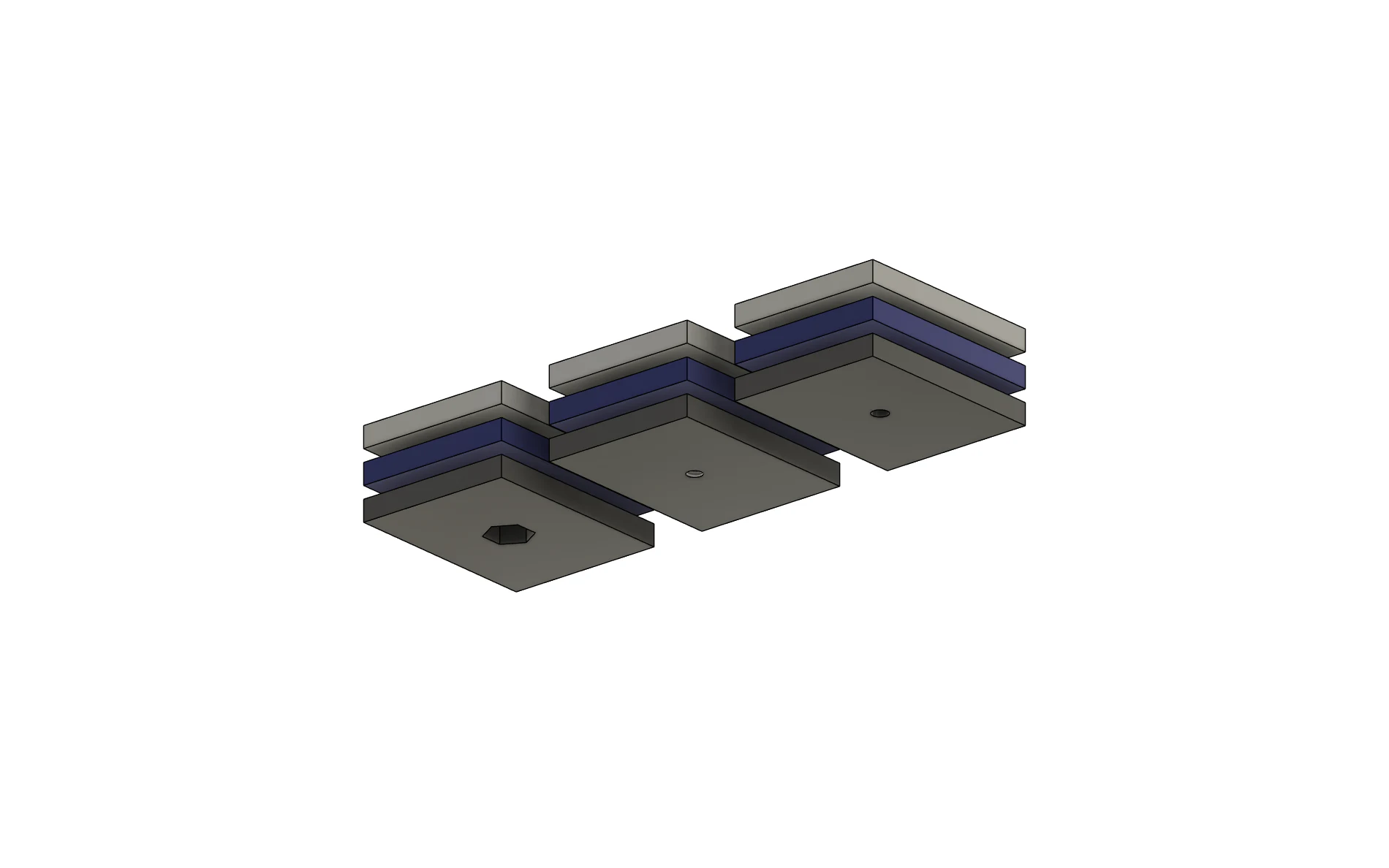
Underside of the dedicated three-layer hole test piece showing tapped exits and hexagonal nut pockets
Underside of the same test piece: tapped exits and captive-nut pockets are visibly different from the head-side treatments.
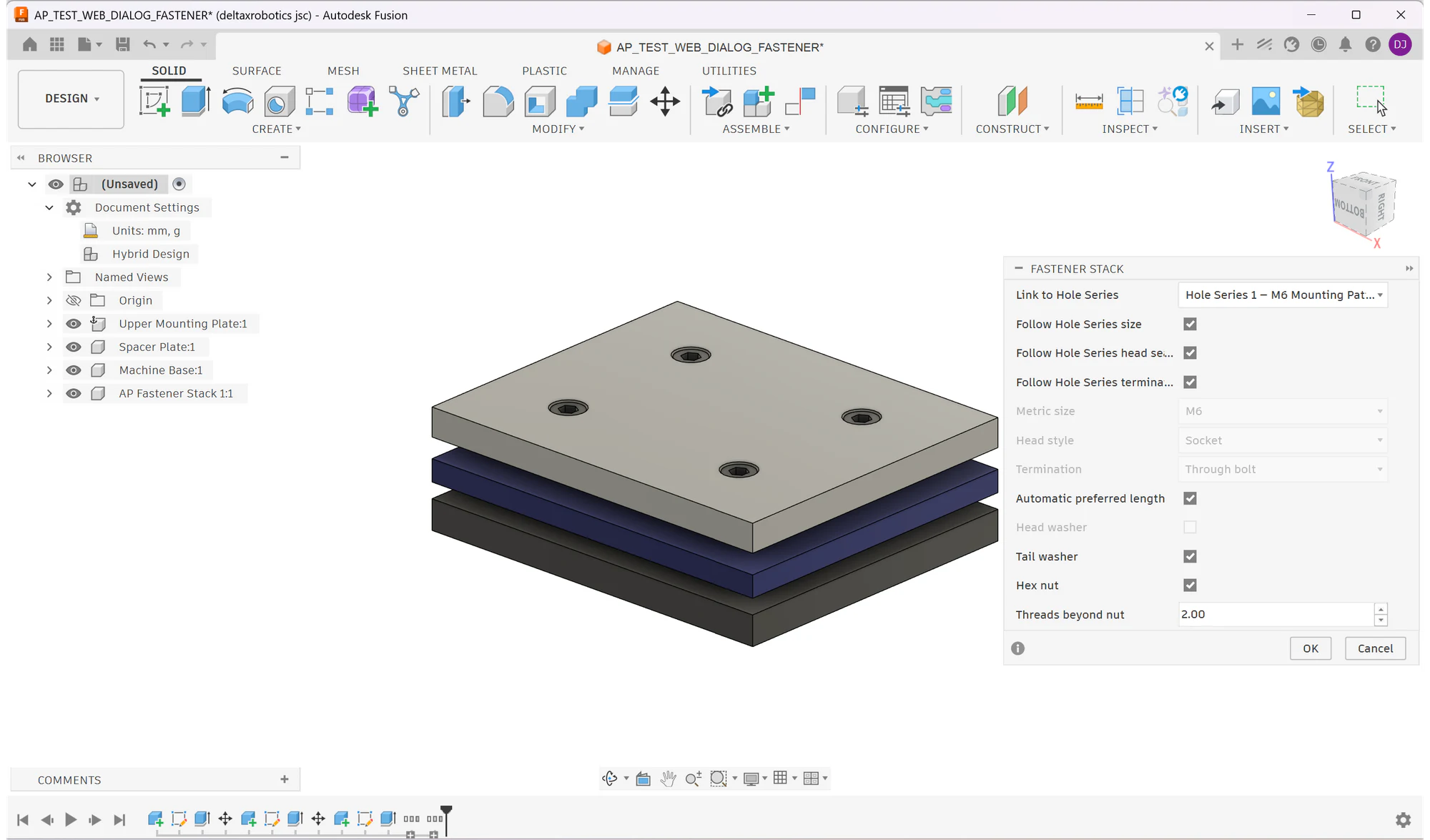
Fastener Stack dialog in Fusion linked to a saved Hole Series with metric hardware and automatic length controls
Fastener Stack dialog: link the hardware to its Hole Series, follow the saved size and treatments, then choose automatic length, washers and nut.

Fastener Stacks

Hardware sized for the components it actually passes through

Build metric hardware as part of the managed assembly feature instead of placing unrelated reference bodies. The stack follows its Hole Series and remains available to Edit, Update All and Audit.

  • Metric fastener data stored locally and editable.
  • Automatic length selection from the actual component stack.
  • Optional head-side and tail-side washers.
  • Nut option connected to the matching far-side treatment.
  • Lightweight reference geometry - verify final dimensions with your supplier.
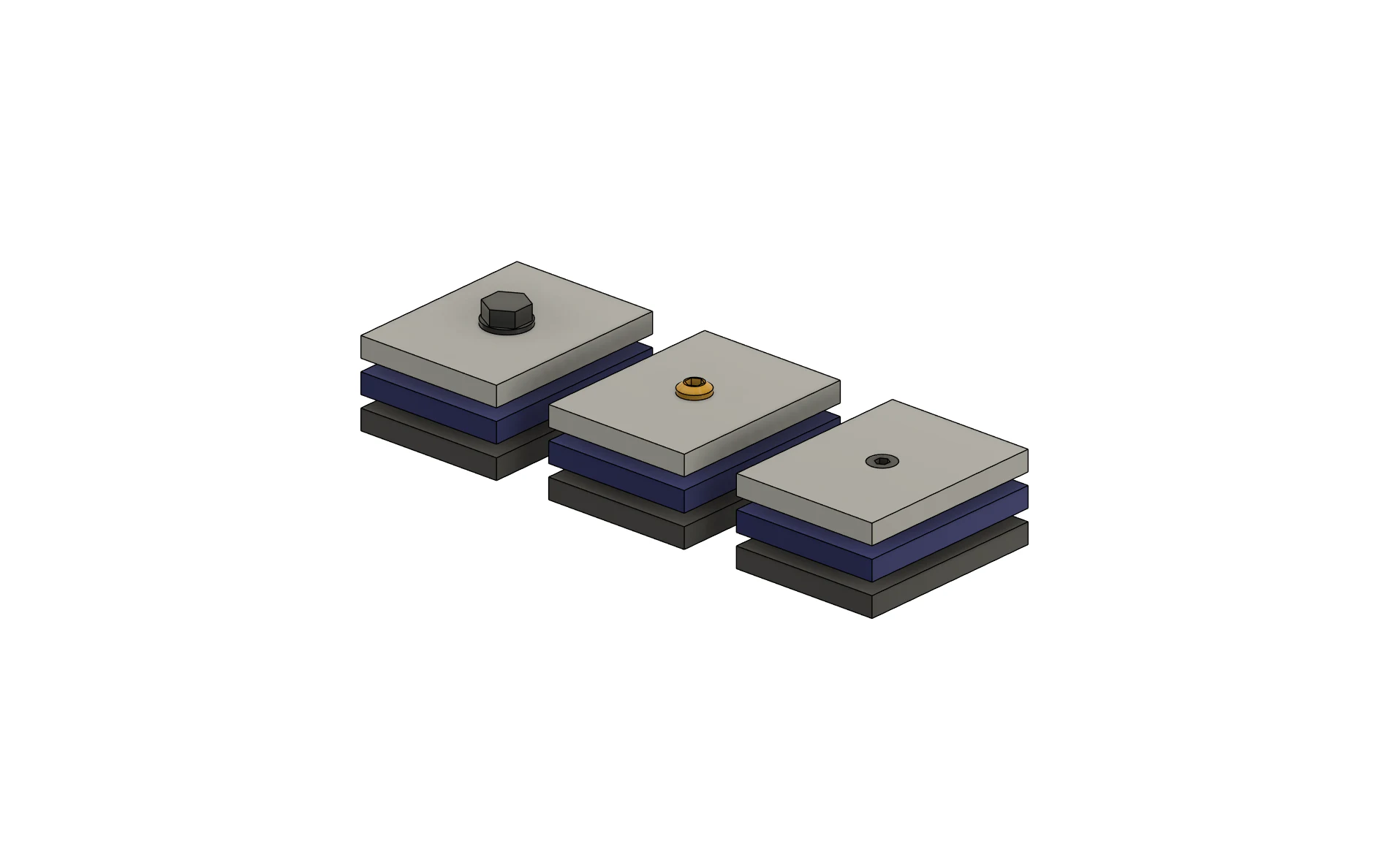
Fusion hardware test matrix with multiple linked metric fastener configurations across separate plate stacks
Top side: multiple linked hardware configurations are shown on separate stacks, with distinct head styles and seating treatments.
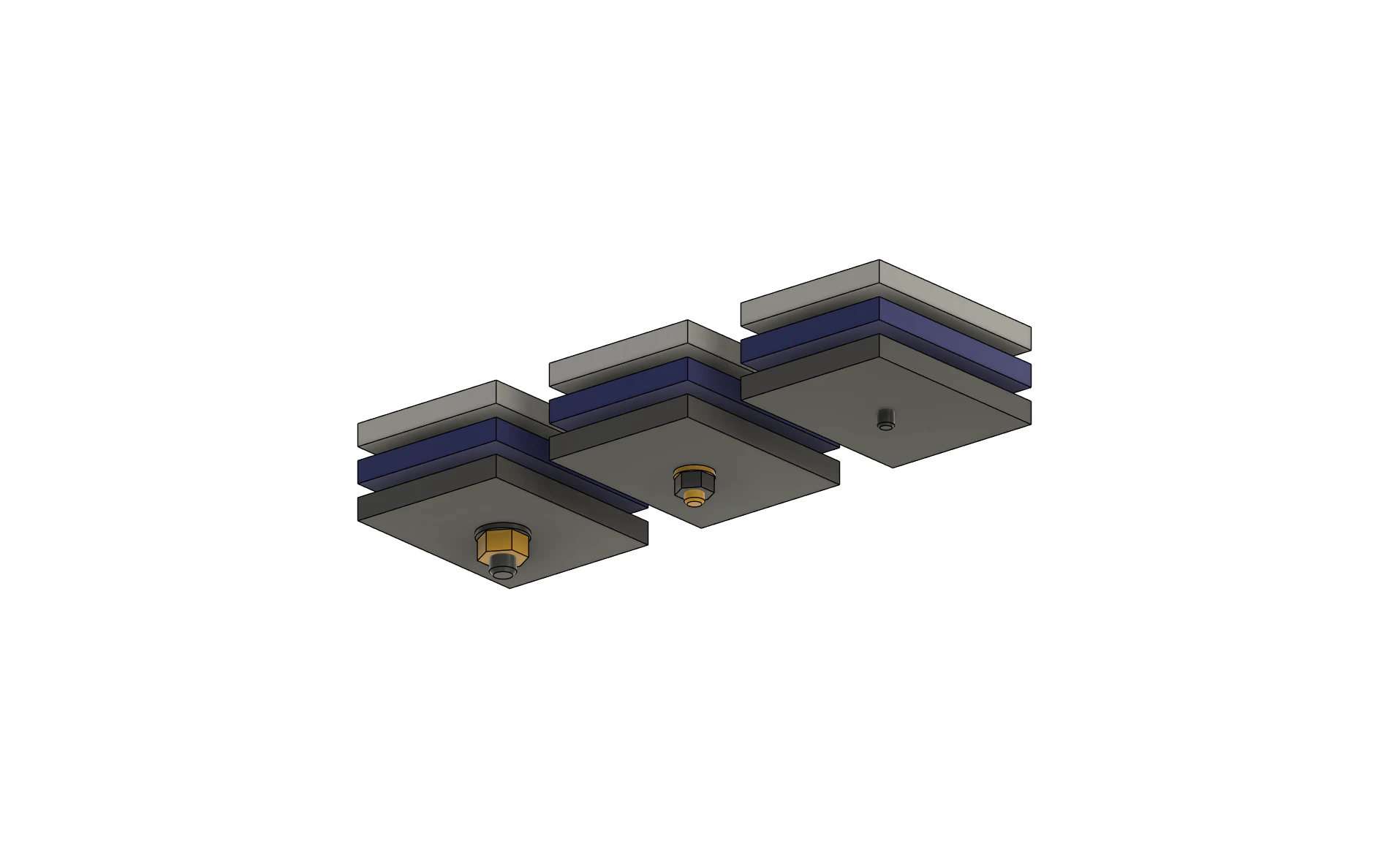
Underside of the Fusion hardware test matrix showing washers, nuts and threaded terminations
Underside: washers, nuts and threaded terminations make the complete hardware stack visible instead of hiding it inside the hero model.

Assembly Cut / Intersect

One source body, one managed operation, several components

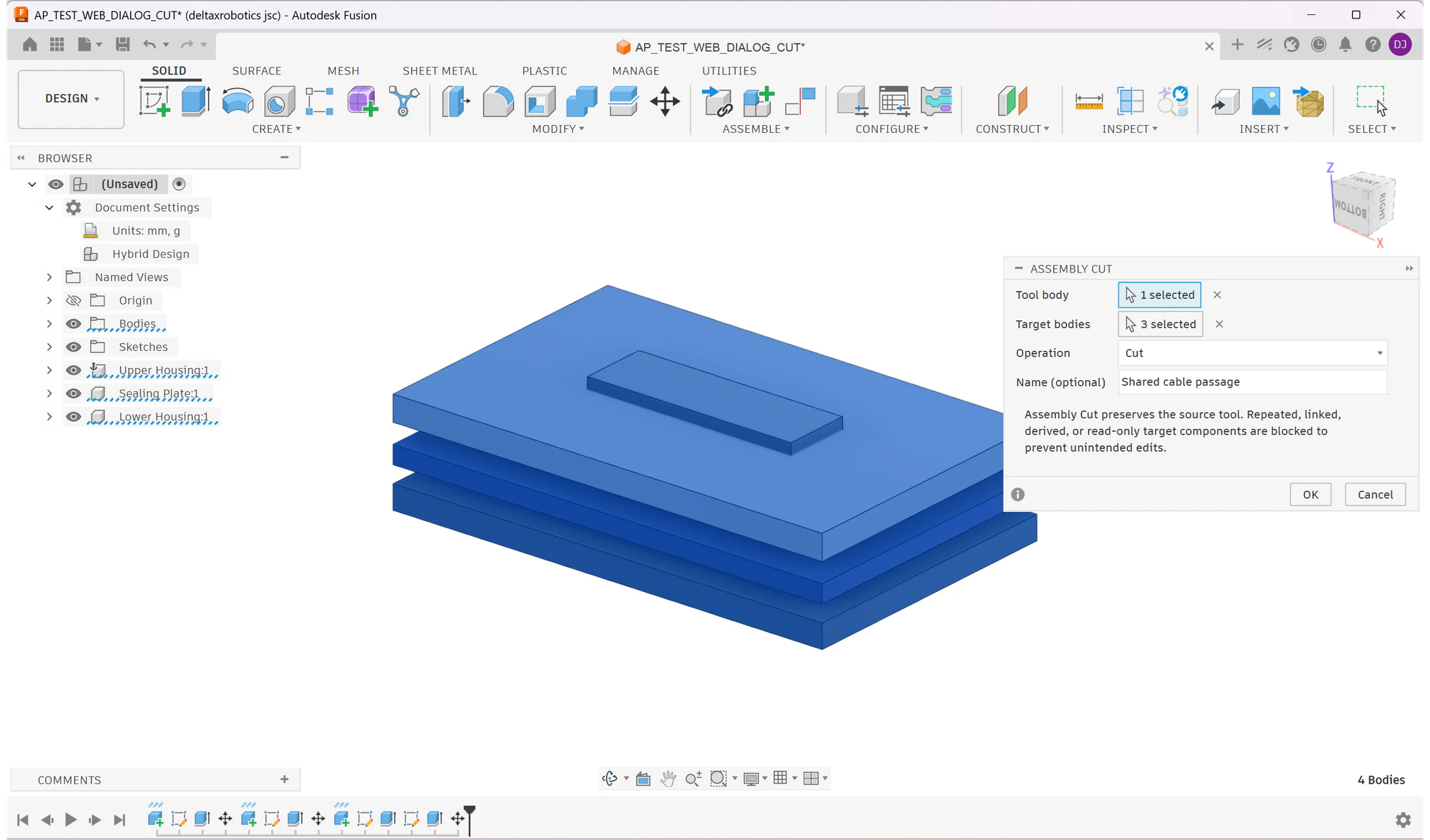
Select a tool body and every component it must affect. Assembly Pilot applies the same Cut or Intersect intent across the target set and stores the operation for later editing and rebuilding.

Assembly Cut dialog in Fusion with one tool body, multiple target components and Cut or Intersect operation controls
Assembly Cut dialog: choose the tool, select the target components and save either a Cut or Intersect as one managed operation.
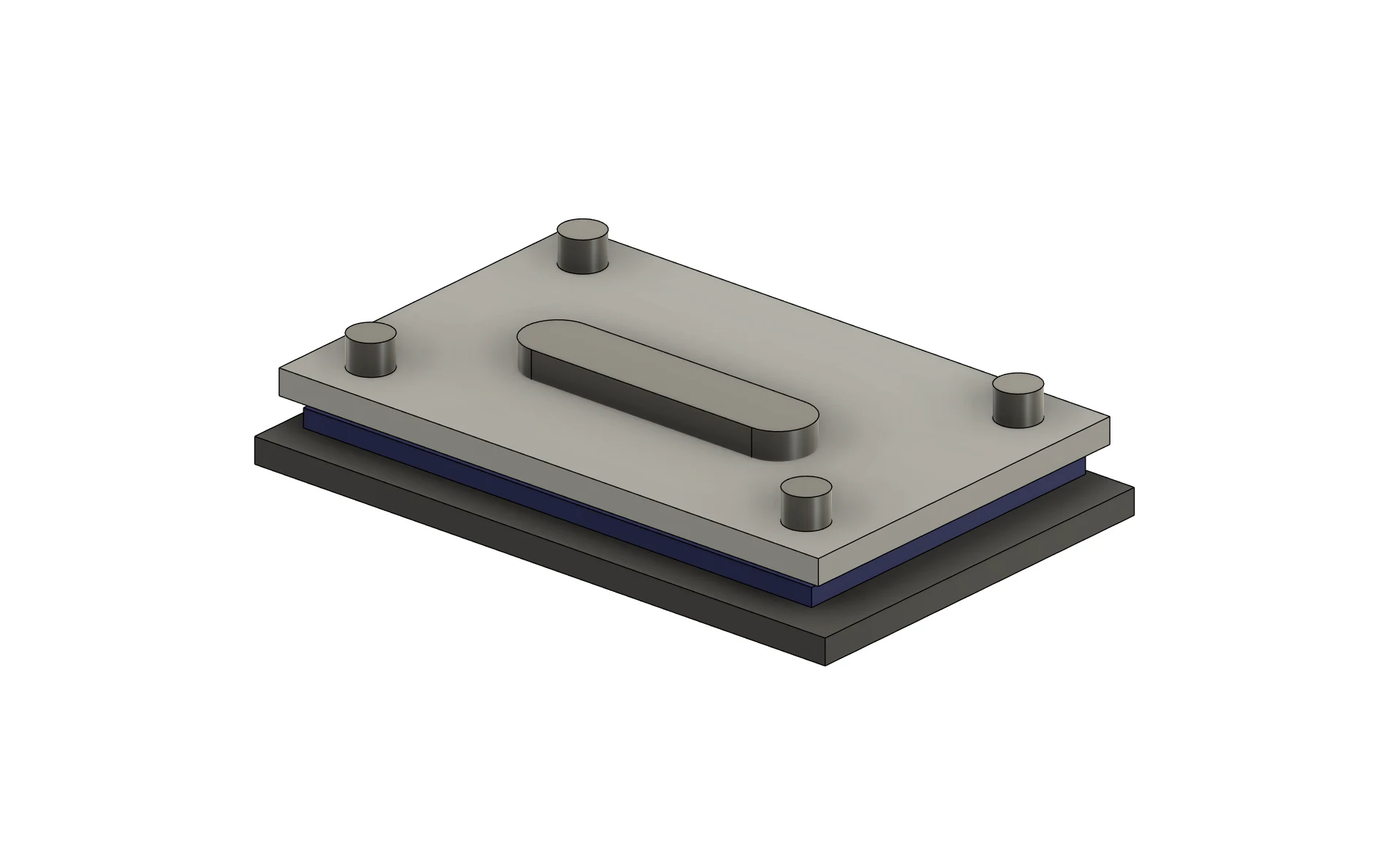
Dedicated stacked housing before Assembly Cut with the capsule-shaped tool body crossing all target layers
Before: the source body crosses the dedicated housing layers; the same locked camera makes the geometry change unambiguous.
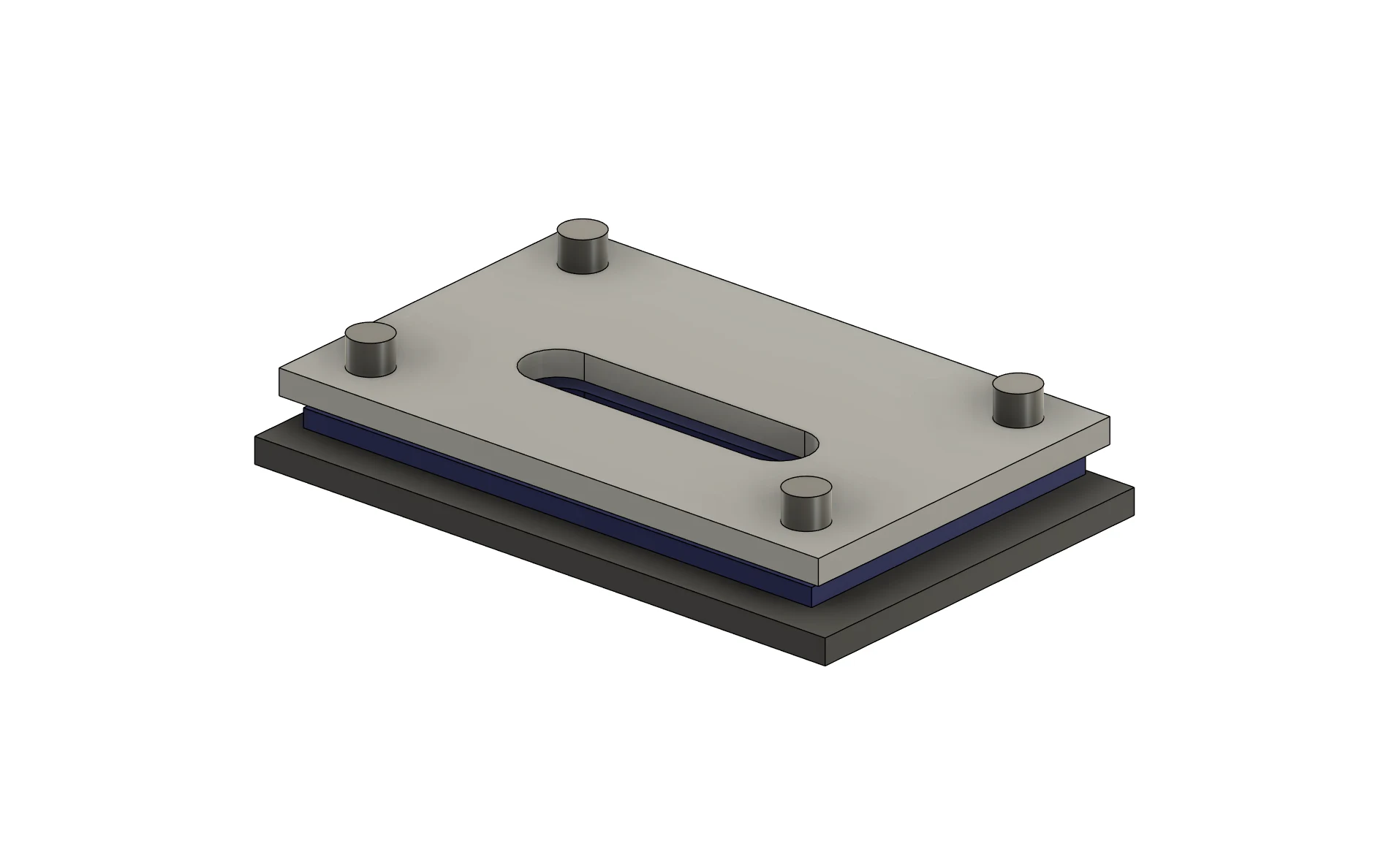
The same stacked housing after a capsule-shaped passage was cut through every selected component
After: the matching passage is applied through every selected component as one saved Assembly Cut operation.

Lifecycle

Create it once; keep control when the assembly changes

The value of a managed assembly feature appears after the first placement. Move a parent occurrence, change the surrounding model, then update and audit the saved operations instead of reconstructing them individually.

01

Create

Define a Hole Series, Fastener Stack, Cut or Intersect across the relevant components.

02

Edit

Reopen a managed operation and change the stored specification.

03

Update All

Rebuild managed operations together after component geometry or placement changes.

04

Audit

Review saved operations as a set and identify anything that needs attention.
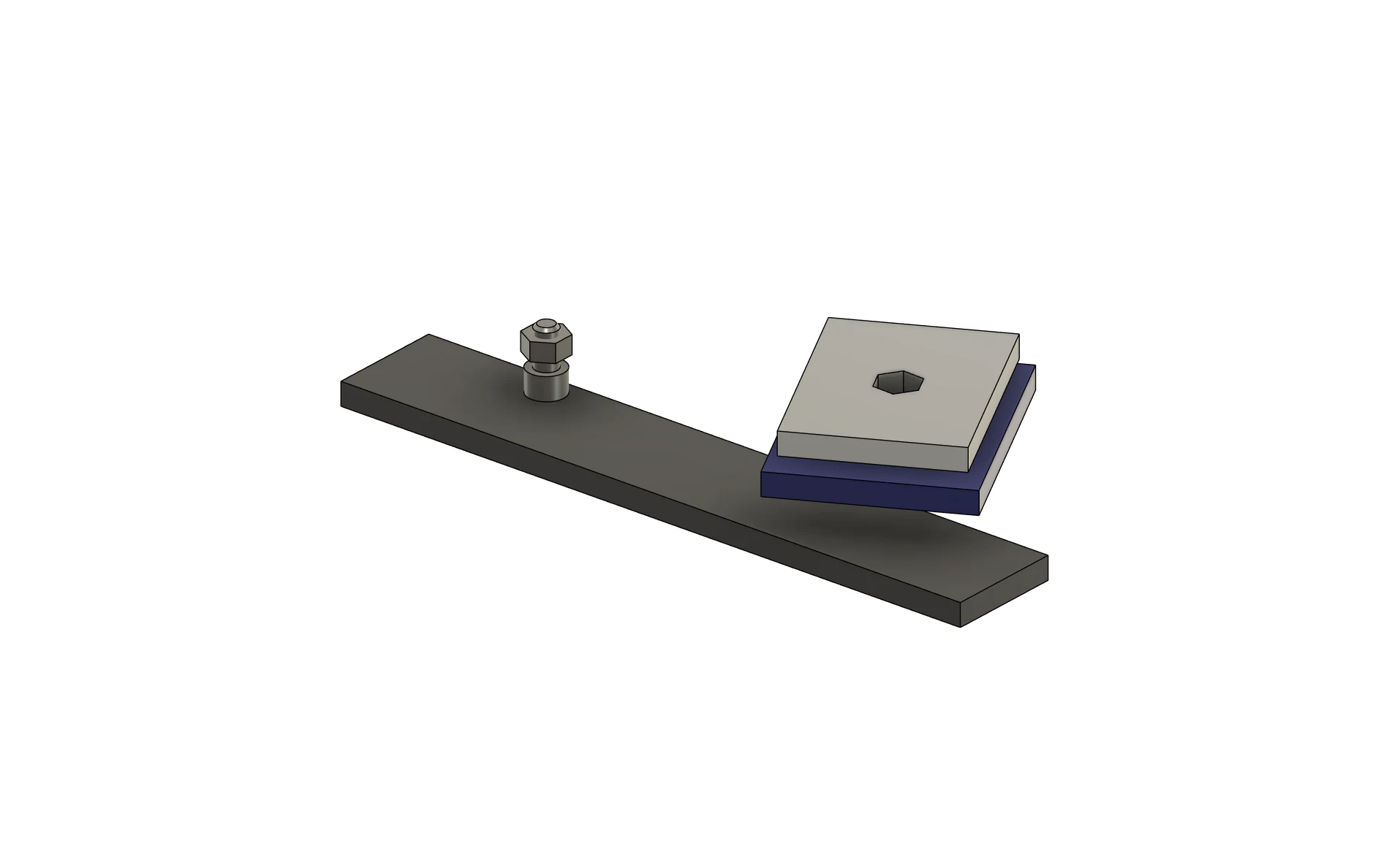
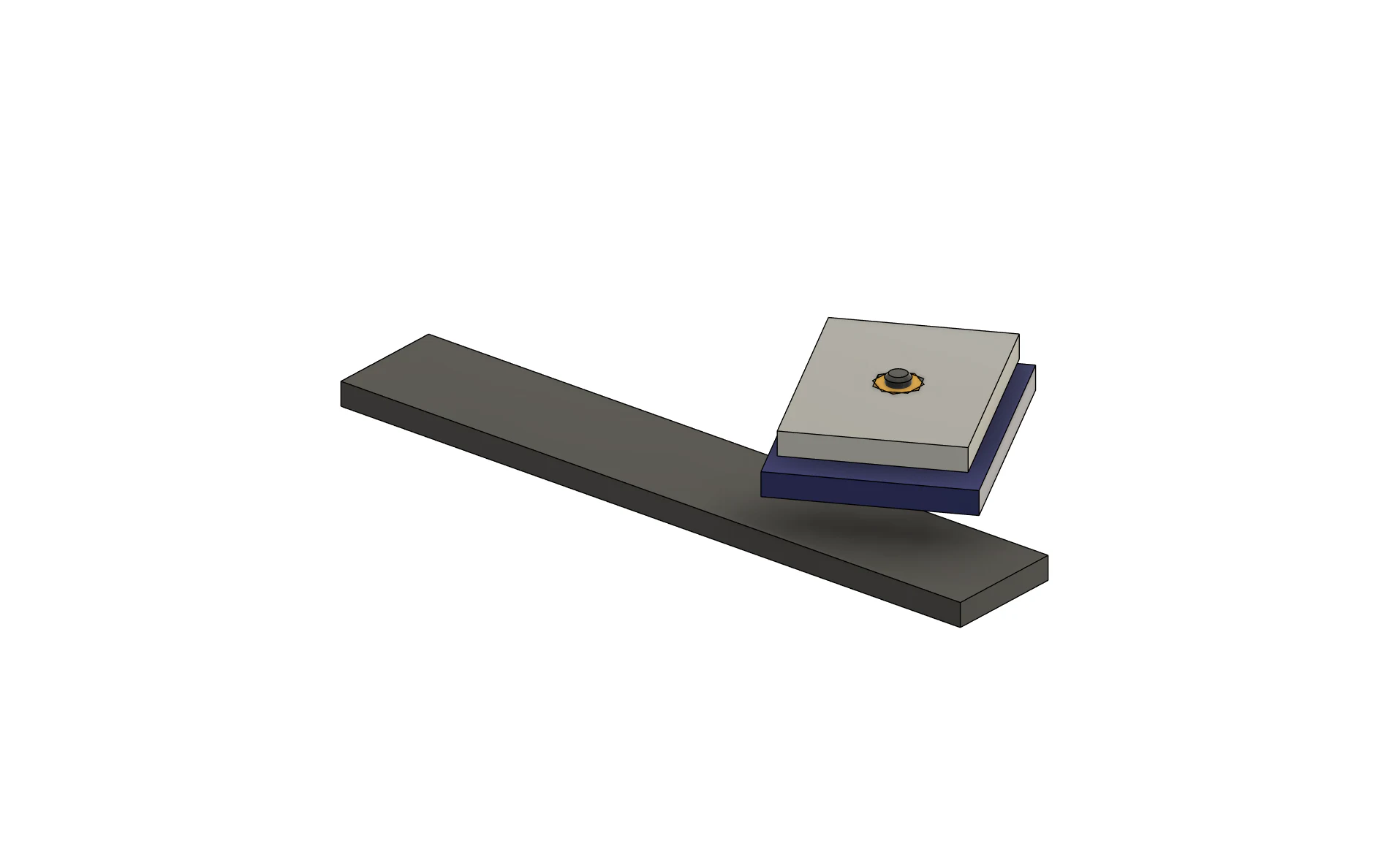
Nested Fusion assembly after its parent occurrence moved and before managed hole and fastener operations were updated
Before Update All: the nested parent occurrence has moved, exposing which generated assembly features still need to follow it.
The same nested Fusion assembly after Update All realigned its managed hole and fastener operations
After Update All: the managed hole and linked hardware resolve the nested component context and return to the intended placement.
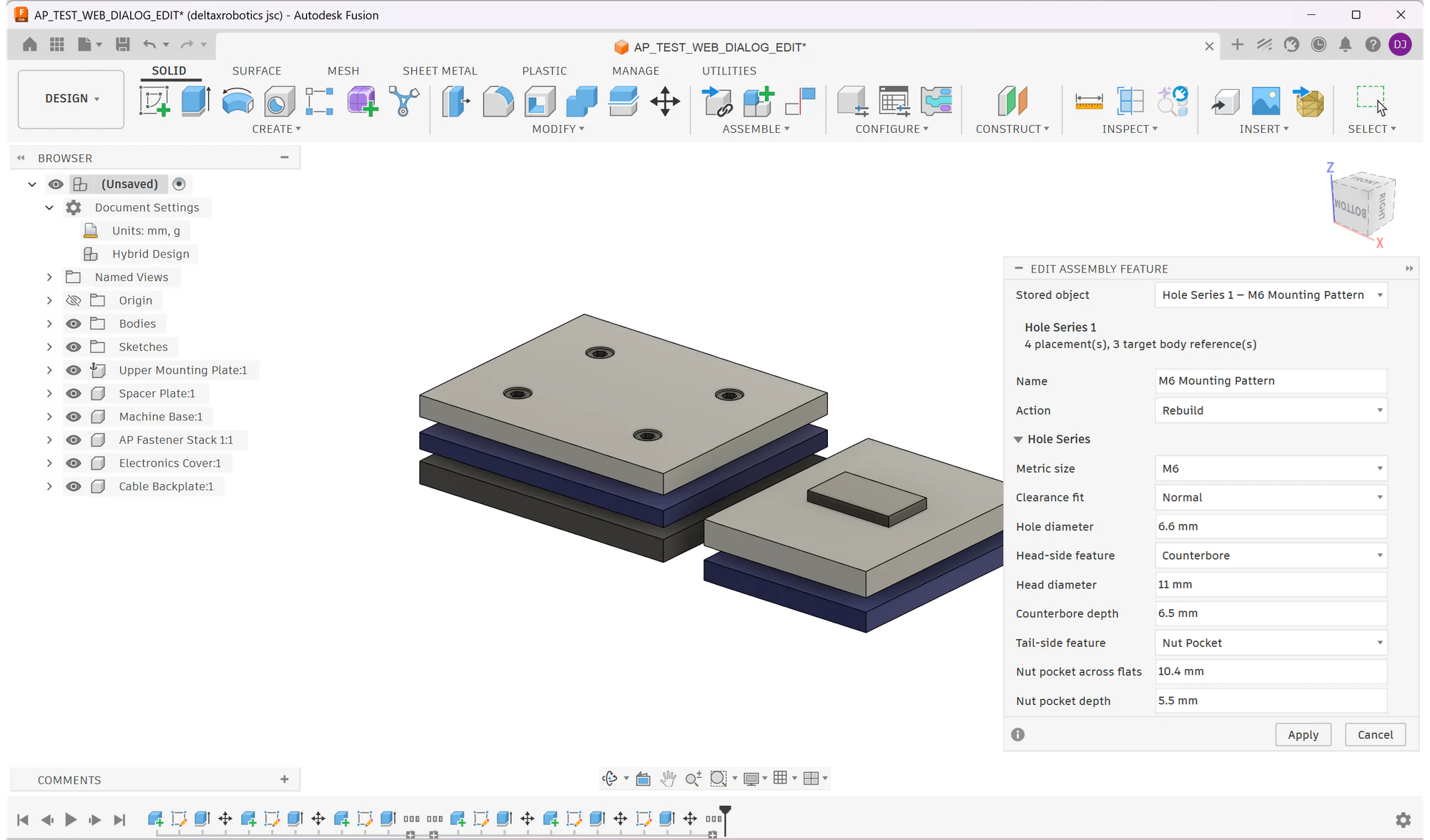
Edit Assembly Feature dialog in Fusion reopening a saved M6 Hole Series with its original placements, targets and treatments
Edit Feature: reopen a stored operation, change its saved specification and rebuild or delete it without recreating the selections.
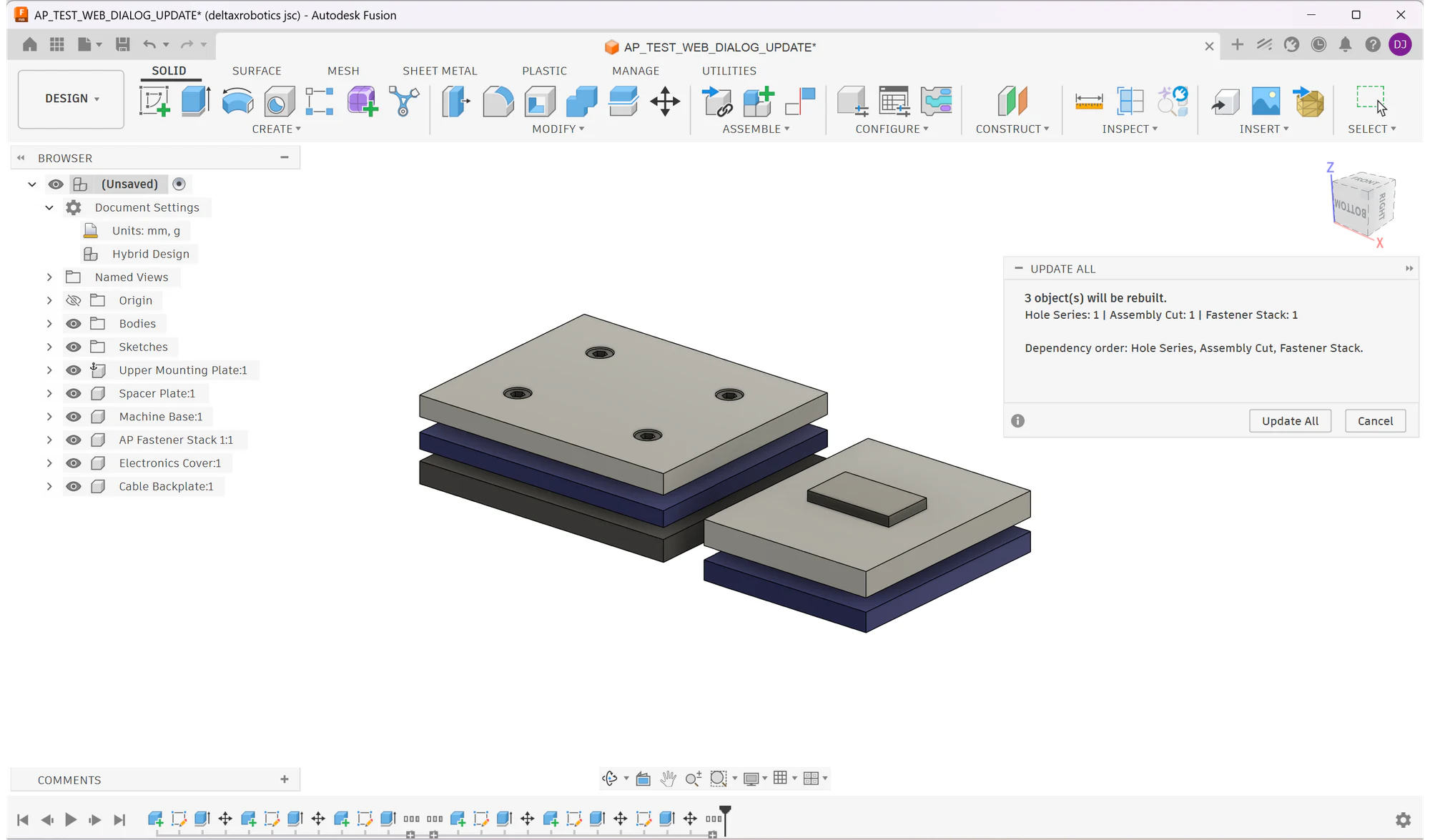
Update All dialog in Fusion listing managed Assembly Pilot operations and their rebuild order
Update All in Fusion: review the managed operation count and rebuild them together in dependency order.
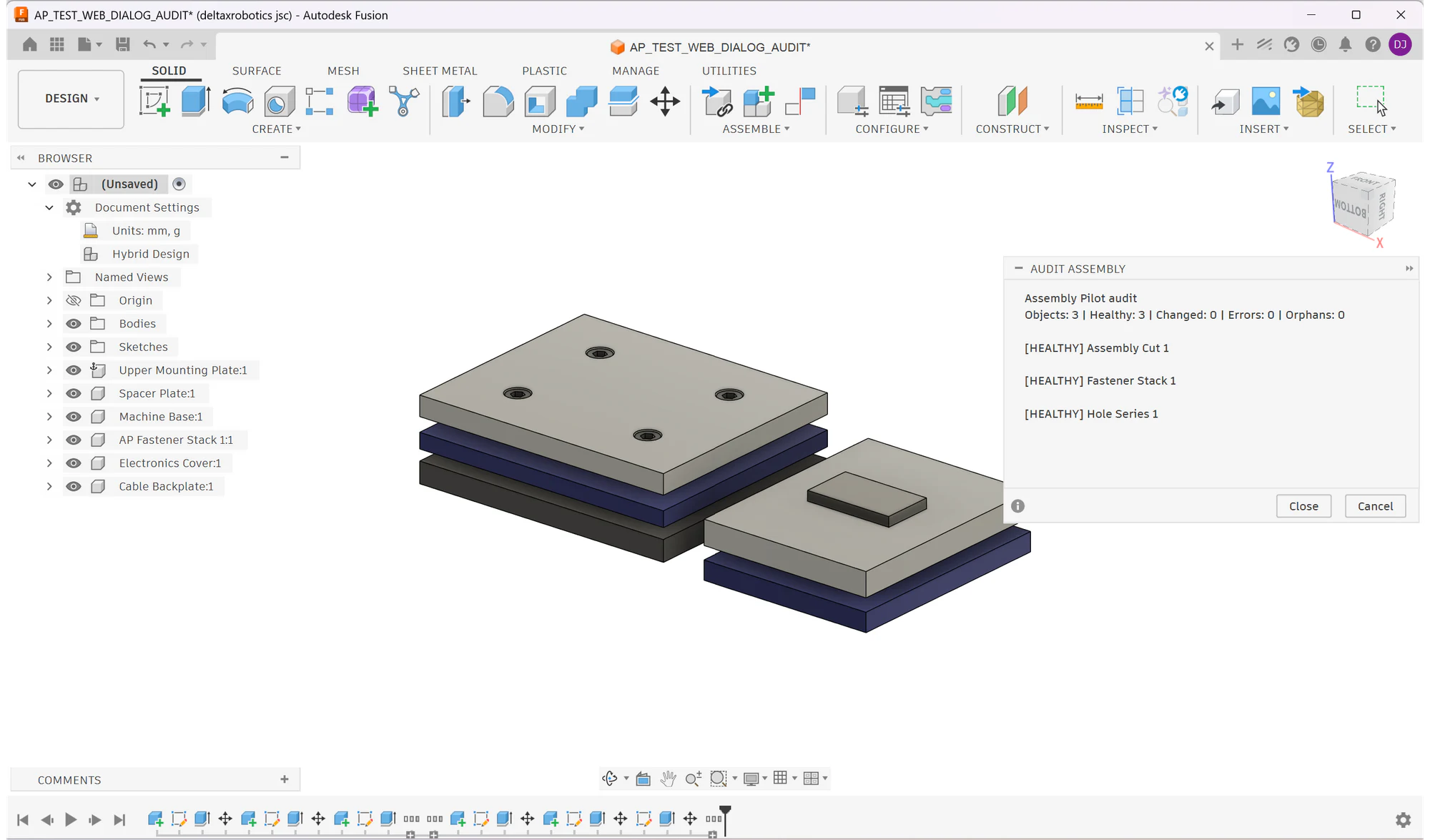
Assembly Pilot Audit report in Fusion listing saved operations and their current status
Audit in Fusion: inspect the saved operations and their status together before releasing the assembly downstream.

Assembly Pilot 1.0

US$39listed price

One-time price per user. Email VanThanBK to receive the current installer and payment details. A free 3-day trial starts on your first protected tool use, not when Fusion starts.

Get Assembly Pilot

Buy directly from the developer and receive installation help when you need it. The Fusion images above were created with the same add-in build.

Questions

Assembly Pilot FAQ

Is there a free trial?

Yes. The free 3-day trial begins when you first use a protected Assembly Pilot tool while signed in and online. Simply starting Fusion or opening the About command does not consume it.

Which operating systems does version 1.0 support?

Assembly Pilot 1.0 is released for Windows. A macOS listing will be added only after the complete Fusion integration and licensing test suite passes on macOS.

Which hole treatments can a Hole Series create?

Clearance, counterbore, countersink, tapped-hole and nut-pocket treatments can be coordinated across the aligned components in the series.

What is linked about a Fastener Stack?

The metric hardware stack is saved with its assembly operation. Assembly Pilot can choose a fitting fastener length automatically and can include a captive nut.

What happens when components move or become nested?

Assembly Pilot stores component context with its managed operations so Edit, Update All and Audit can resolve moved and nested component occurrences.

Does it work only with holes?

No. It also manages multi-component Cut and Intersect operations, with the same edit, update and audit workflow.

How do I buy Assembly Pilot?

The price is US$39 per user. Email vanthan92e1@gmail.com to buy and receive payment, installation and support details.